

Maptek Account Hotswap
Use the Hotswap option to swap licences for feature upgrade modules without having to exit Vulcan and select a different base feature.
If this option is not displayed in the Tools menu, your company has not purchased a licence for this feature upgrade module. To obtain a licence for this module, contact your local Maptek office.
Licensing Notes
The Hotswap Features panel displays all feature upgrade modules for which your company has a licence. To add additional feature upgrade modules, contact your local Maptek office.
Instructions
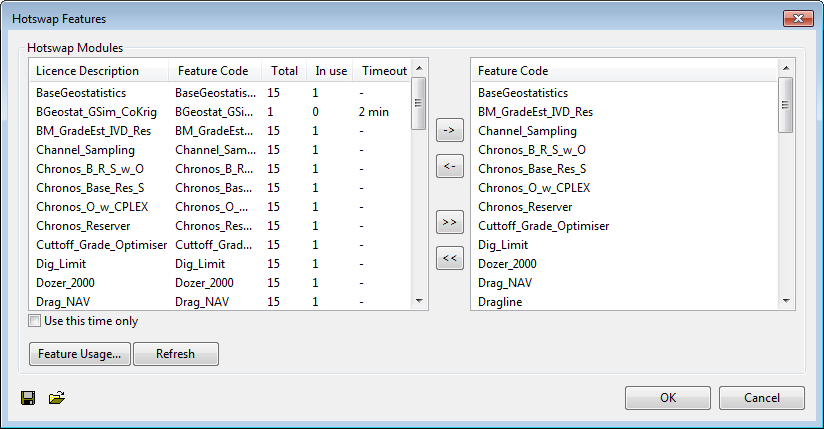
Hotswap Features panel
To add a licence for a feature upgrade module, click on the module in the left column and click the right arrow  icon to add the module, or click the double right arrow
  icon to add all modules.
To remove a licence for a feature upgrade module, click on the module in the right column and click the left arrow  icon to remove the module, or click the double left arrow
  icon to remove all modules.
Hotswap Modules
Save
Click the Save  icon in the lower left corner of the panel to save the current hotswap selections as the default features.
Open
Click the Open  icon in the lower left corner of the panel to load the default features as the current hotswap selections.
Licence Description
Displays the description of the license for the module.
Feature Code
Displays the feature code for the module.
Total
Displays the total number of licences available for the module.
In use
Displays the total number of licences for the module that are currently in use.
Timeout
Displays how long the licence for the module can be inactive before it expires and is returned to the licence pool. If the licence times out, a message displays that the features have been returned to the licence pool.
Use this time only
Select this check box to indicate that you want to use a licence for the current Vulcan session only. If you select this check box, the licence will be returned to the licence pool when you end your Vulcan session and will not be used in future Vulcan sessions by default.
Feature Usage
Click Feature Usage to display the Feature Usage panel. This panel displays a list of modules that are currently in use.
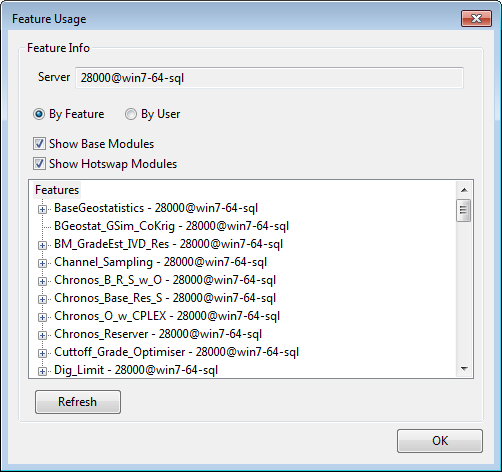
Feature Usage panel
Feature Info
Server
Displays the current location of the licences for the modules.
By Feature or By User
Select whether to display the modules that are currently in use by feature or by user.
Show Base Modules
Select this check box to display base modules that are currently in use.
Show Hotswap Modules
Select this check box to display hotswap modules that are currently in use.
Refresh
Click Refresh to refresh the list of available modules.
Click OK to return to the Hotswap Features panel.
Refresh
Click Refresh to refresh the list of available modules and licences.
Click OK to perform the hotswap.
