

Import MicroStation Data
Importing Design Strings (dgn v7)
Importing Design Strings (dgn v8)
Importing Design Strings (dgn v7)
On the File menu, click Import to display the Import panel.
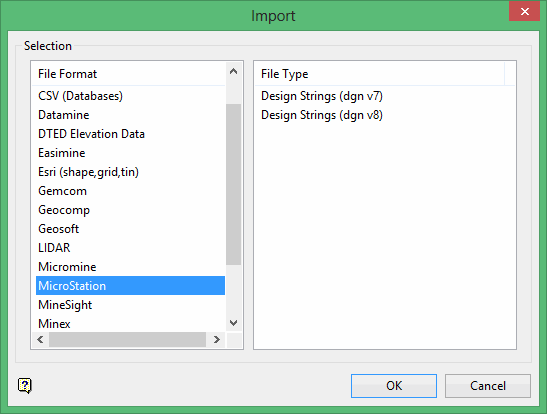
Click MicroStation in the File Format column on the left.
Select Design Strings (dgn v7) from the File Type field on the right side of the panel.
Click OK to display the Import MicroStation Selection panel.
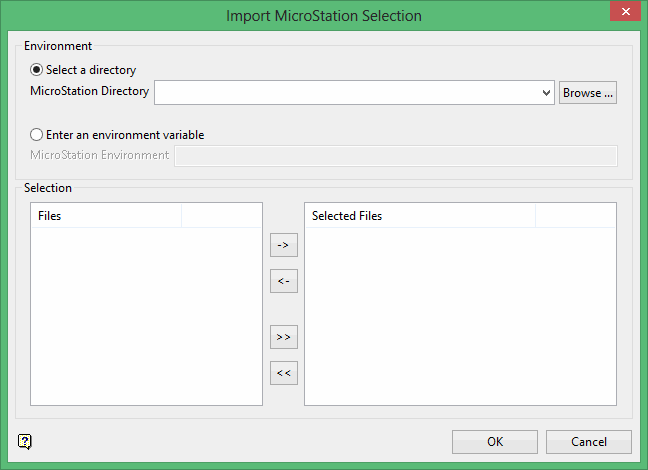
MicroStation files are user-definable therefore there is no one step method to import text, ellipses, solids or colour tables. Text or ellipses for example: should be imported as layers; solids by 'dropping' them from MicroStation; and colour tables by working out the numbers of the colours in MicroStation and then creating a matching colour table in Vulcan. For the best results, we recommend that you use the following export settings on the Files > Export > 3D panel in MicroStation:
- Select all default options except the Z Depth options. Change this to 'element Z high'.
- Ensure that 'no conversions' is set as the default.
