

Move 
Move a Point to a New Position
Use the Move option to move a point to a new position.
This option can also be accessed by selecting the Move Point button from the Move toolbar. The Move toolbar is a "sub toolbar" and can either be accessed through the Modify toolbar or through using the Tools > Toolbar Visibility option.
Vulcan's dynamic volume reporting functionality can also be used when altering point positions. Refer to the Digitise toolbar for more information.
Instructions
On the Model menu, point to Contouring, and then click Move.
Select the object that contains the point that you want to move. Once chosen, the selected object and its points are highlighted.
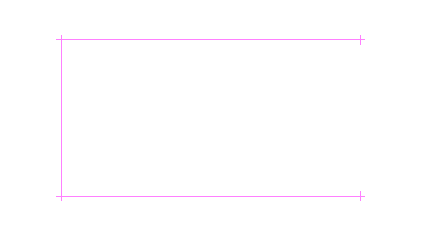
Figure 1: The Original Object (Highlighted)
Select the point that you want to move.
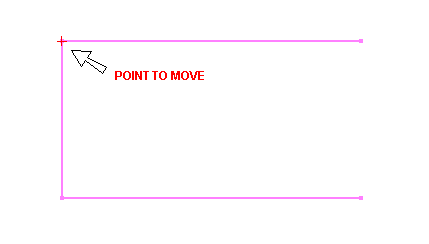
Figure 2: Selecting the Point to Move
Indicate, using any of the design entry modes, the new point position.
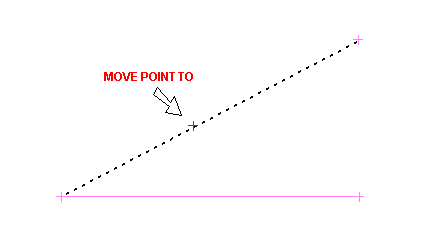
Figure 3: Indicating the Point Position
Once the point position has been indicated, the chosen point is shifted.
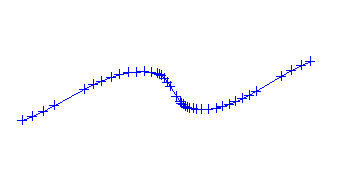
Figure 4: The Resultant Object
You are then prompted to select another point. Cancel when you have finished moving points.
