

Preferences - Dimension
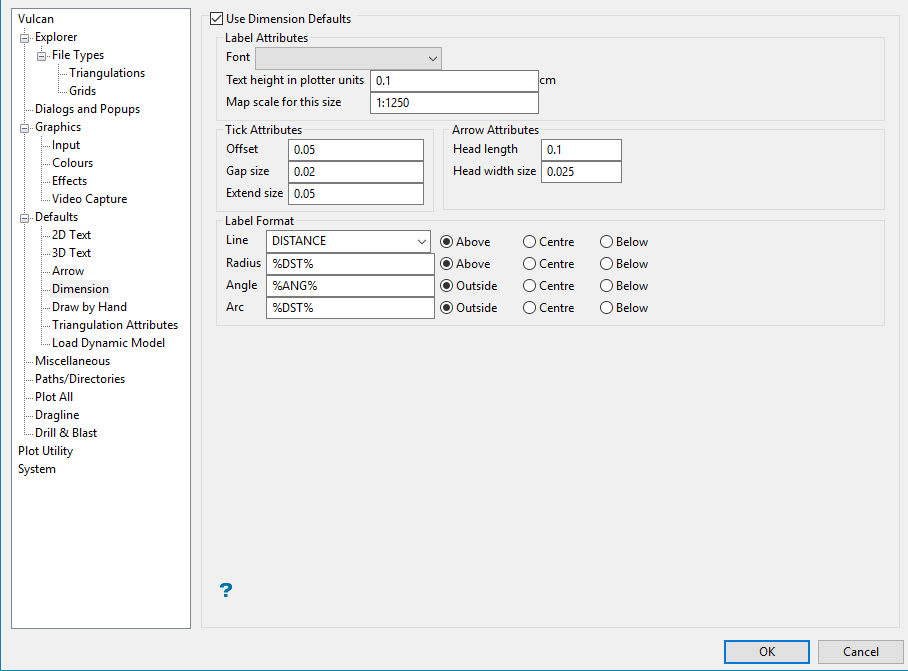
Use Dimension Defaults
Select this check box to use the following dimension defaults when using the dimensioning tools, that is, the options listed under the Design > Dimension submenu.
If this check box is not selected, then you will be required to specify the dimension settings each time you annotate your drawings with dimension values.
Label Attributes
The label attributes refer to annotations rather than labels. Annotations can be plotted whereas labels can only be plotted if they are first placed in a layer.dd>
Font
Select, from the drop-down list, the font to be used by the dimensioning tools. Due to the 3D nature of the dimension tools, only transformable (vector) fonts can be selected.
Text Height in plotter units
Enter the height, in plotter units, for the text.
Map Scale for this size
Enter, as a ratio, the scale used by the text height.
For example, if you have a text height of 10 cm, and the map scale is '1:1250', then the text will appear on the screen the same size as an object that is 125 units long.
Check Attributes
Offset
Enter the distance from the object to the dimension line.
Gap Size
Enter the distance from the object to the bottom of the check mark.
Extend Size
Enter the distance form the object to the top of the check mark.
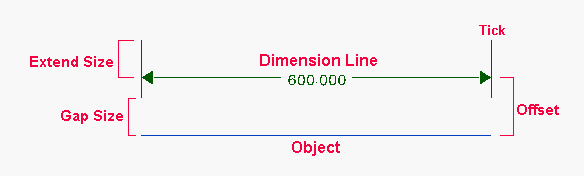
Figure 1: Check attributes
Arrow Attributes
Head Length
Enter the length of the arrow head.
Head Width
Enter the width of the arrow head.
Line
This field sets the annotation format for the Line option (under the Design > Dimension submenu). It is possible to annotate the line segment with its distance (measured in the units specified in the project specification (.dg1) file), gradient or a user-defined annotation. To annotate distance or gradient, then select the appropriate dimension from the drop-down list.
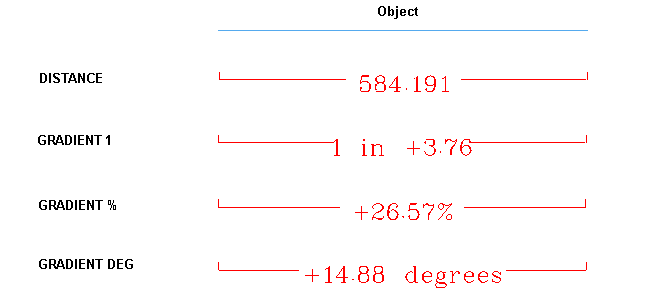
Figure 2: Line annotations
It is also possible to use text strings to annotate gradients. The full form of the string is %GRDN.X% where N represents the gradient option (either 1, 2 or 3) and X represents the number of decimal places (0 - 9) in the annotation.
|
Annotation String |
Output |
|---|---|
|
%GRD1.2% |
1 in 3.70 |
|
%GRD2.3% |
32.457% |
|
Gradient %GRD3.0% |
Gradient 42 degrees |
To customise the distance annotation, use the %DST% string. The %DST% string to display the distance in the current window units with 3 decimals. To change the number of decimal places and units displayed, the string must be modified.
The full form of the string is %DST.X.Y% where X is the number of decimal places (0-9) and Y is the unit designator. The following unit designators are supported by the dimensioning tools:
- C = centimetres
- M = metres
- K = kilometres
- F = feet
- Y = yards
Thus, to set the distance to kilometres and to have 4 decimal places, the string should include %DST.4.K%. To include the chosen units, that is, centimetres or metres, you will need to add this text to the end of the annotation string, For example: '%DST.2.M% Metres' to get '30.48 Metres'.
Here are several examples of annotation string formats and their outputs for a line 100 feet long.
|
Annotation String |
Output |
|---|---|
|
%DST% |
100.000 |
|
%DST.0% |
100 |
|
%DST.1.Y% yards |
33.3 yards |
|
Distance %DST.2.M% metres |
Distance 30.48 metres |
Above/Centre/Below
Select the position of the annotation string relative to the dimension line.
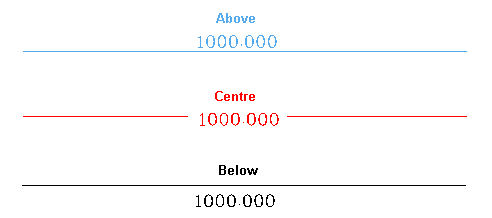
Figure 3: Annotation positions
Radius
This field sets the annotation string format for the Radius option (under the Design > Dimension submenu). Refer to the Line section for information on the annotation string format.
Angle
This field sets the annotation string format for the Angle option (under the Design > Dimension submenu). To include the angle (automatically computed by the option), use the string %ANG%. By default, this displays the angle in degrees with 3 decimals. To change the number of decimal places and units displayed, the string must be modified.
The full form of the string is %ANG.X.Y% where X is the number of decimal places (0-9) and Y is the unit designator. The following unit designators are supported by the dimensioning tools:
-
R = Radians
-
G = Grads
To include the chosen units, that is, Radians or Grads, you will need to add this text to the end of the annotation string, For example: %ANG.3.R% Radians' to get '0.785' Radians'.
|
Annotation String |
Output |
|
%ANG% |
45.000 |
|
%ANG.0% |
45 |
|
Angle %ANG.3.R% Radians |
Angle 0.785 Radians |
Inside/Centre/Outside
Select the position of the annotation string relative to the dimension line.
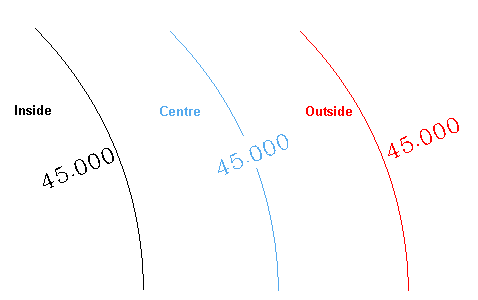
Figure 4: Annotation positions
Arc
This field sets the annotation string format for the Arc option (under the Design > Dimension submenu). Refer to the Angle section for information on the annotation string format.
The dimension defaults will be stored in the <proj>envix.defaults and vulcan.prefs files.
