

Multiple Sections
Multiple Sections
Use the Multiple Sections option to select multiple objects to appear in section view when exported to the DragNav mapfile. This option is similar to the Interactive Sections option, however instead of having to select each object in each section one by one, you only need to select an object once and then it will be applied to all the sections in the sequence.
For example if you were to select the first string in section one, then the first string in every other section in the sequence will also be selected.
Instructions
On the Dragline menu, point to DragNav, and then click Multiple Sections.
You are prompted to select the start section in sequence. Then you will be prompted to select the end section in sequence.
The following panel is then displayed.
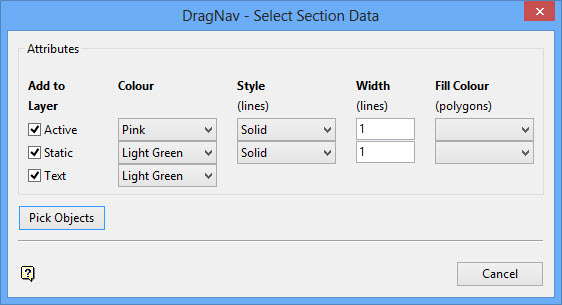
Attributes
Specify that attributes to be assigned to the selected object.
Add to Layer
This section allows you to define what type of layers an object is associated with. These layers can contain multiple drawing objects such as lines, polygons and text. Each individual layer can be turned on or off by the dragline operator to allow for the most appropriate mapfile information to be shown for the current job.
The following layer types can be assigned to design objects:
Active
Select this check box to add the chosen object(s) to an Active layer. This layer is designed for design lines. The onboard system allows the operator to show the current distance from any line on this layer to the bucket.
Static
Select this check box to add the chosen object(s) to a Static layer. This layer is designed for informational lines. These lines can be used to convey important information to the operator, but the operator can turn them off to reduce clutter on the display when they are not needed.
Block
Select this check box to add the chosen object(s) to a Block layer.
Text
Select this check box to add the chosen object(s) to a Text layer. This layer is designed to allow the representation of text on the screen that is made from individual lines. This layer also controls the text that is associated with all lines. If this layer is turned off onboard the dragline, no line names will appear, regardless of which other layers are turned on.
Colour
Select from the drop-down lists, the colours to be applied to the chosen line object, for each layer type it is associated with.
Style
Select from the drop-down lists, the line style to be applied to the chosen line object for each layer type it is associated with.
Width
Select from the drop-down lists, the width (in pixels) to be applied to the chosen line object for each layer type it is associated with.
Note: We recommend that a width of 1 pixel is applied to lines, as active lines and cross section lines are automatically widened to a width of 3 pixels to make them stand out for the operator.
Fill Colour
Select from the drop-down lists, the fill colour to be applied to the chosen polygon object for each layer type it is associated with.
Press the Pick Objects button when you're ready to select the design objects that are to be exported to the DragNav mapfile. Once selected, the Multiple Selection box displays. From the displayed dialog box, nominate a selection method, that is, by object, layer etc., and select the objects that you want to export. Cancel when you have finished selecting the desired objects.
You will be prompted to step to the next section or to cancel. If you choose to step to the next section then you will need to confirm that you want to select the section.
The 'DragNav - Select Section Data' panel is redisplayed for each object selected.
Cancel once you have finished selecting sections.
