

Save As Image
Save a Loaded Plot as an Image
Use the Save As Image option to save the selected plot file as an image. This option also allows you to set the resolution and image format of the image file.
Note: The resulting image saved is not to scale.
Instructions
On the File menu, click Save As Image to display the Save as Image panel.
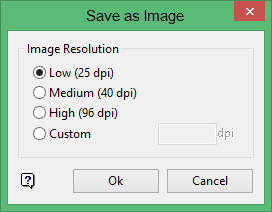
Low
Select this option to save the selected plot at a resolution of 25 dpi (dots per inch).
Medium
Select this option to save the selected plot at a resolution of 40 dpi.
High
Select this option to save the selected plot at a resolution of 96 dpi.
Custom
Select this option to save the selected plot at a custom resolution. The size of the image is calculated by multiplying the dpi by the size of the plot, therefore the higher the resolution the larger the file size.
Click OK.
The following panel is then displayed.
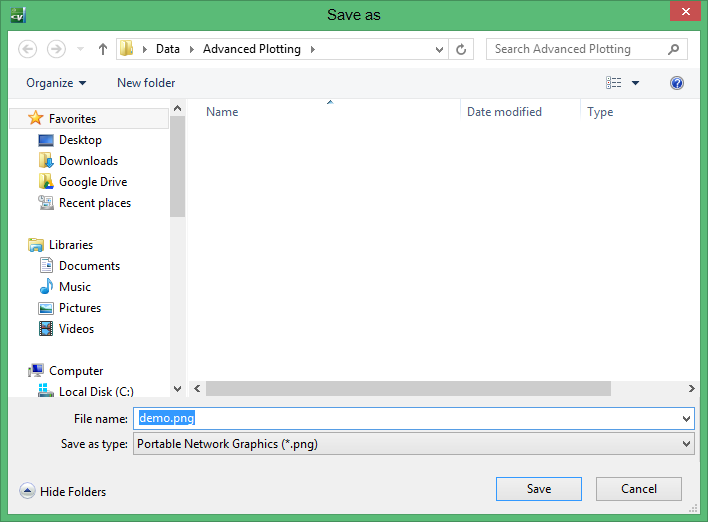
Navigate to the directory in which you want to save the image and enter the file name. You can also specify the image format of the file chosen to be saved by selecting the type from the Save as type field. The image format can be Portable Network Graphics (.png), Tagged Image File Format (.tif or .tiff) or JPEG (.jpg or .jpeg).
The image format selected also affects the size of the resulting image file. The Portable Network Graphics format tends to result in a lower file size, where as the Tagged Image File Format results in the largest.
Click Save.
The image is then created in the specified directory. If the image could not be created, an error message displays. In most cases, this is because the resolution has been set too high.
