

Recondition
Recondition Strings
Use the Recondition option to apply a cubic spline to a string.
In the following diagram the string was filtered prior to being reconditioned.
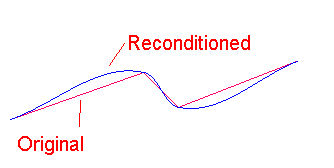
Figure 1: Original and Reconditioned String
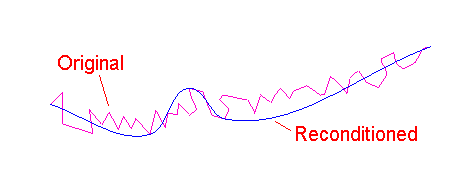
Figure 2: Original and Reconditioned String
Diagrams 3 and 4 show the effect of using a small step and filter size (as you can see the number of points increases dramatically).
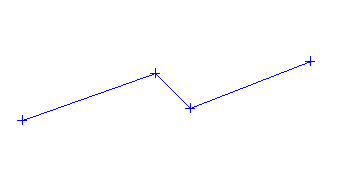
Figure 3: Original String (Points)
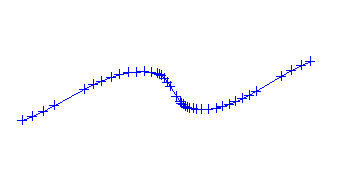
Figure 4: Reconditioned String (Points)
Instructions
On the Model menu, point to Contouring, and then click Recondition to display the Recondition line panel.
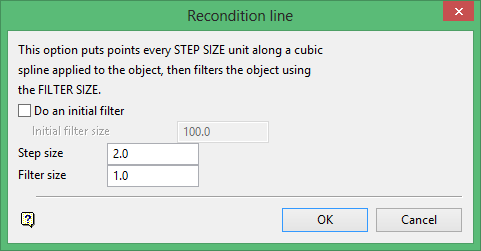
Do an initial filter
Select this check box to filter the string prior to applying the cubic spline.
Initial filter size
Enter the initial filter size. A point will be removed if the perpendicular distance between the point and a line joining the two points either side of this point is less than this value. The initial filter size should typically be larger than the filter size.
Step size
Enter the distance between the inserted points.
Filter size
Enter the filter size. The final object is filtered using this value. A point will be removed if the perpendicular distance between the point and a line joining the two points either side of this point is less than this value.
Click OK.
Select the object. The reconditioning is performed. The reconditioned string displays.
You are then asked whether or not to save the new string. Save Object saves the new string. The original string will be removed and you can then select the next object for reconditioning. Don't save cancels the recondition. The original string will still be displayed.
