

Import Minex ASCII
Instructions
On the File menu, click Import to display the Import panel.
Click Minex in the File Format column on the left.
Select Grids (ASCII) from the File Type field on the right side of the panel.
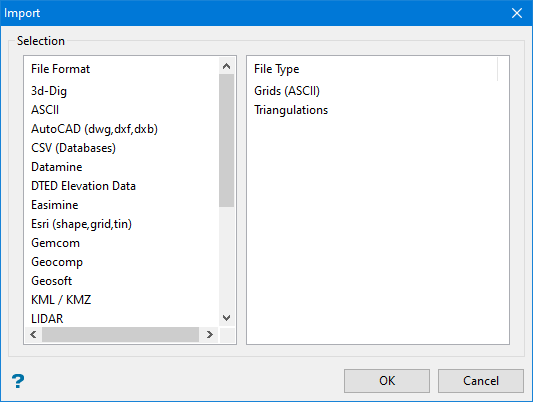
Click OK to display the Import Minex ASCII Grid panel.
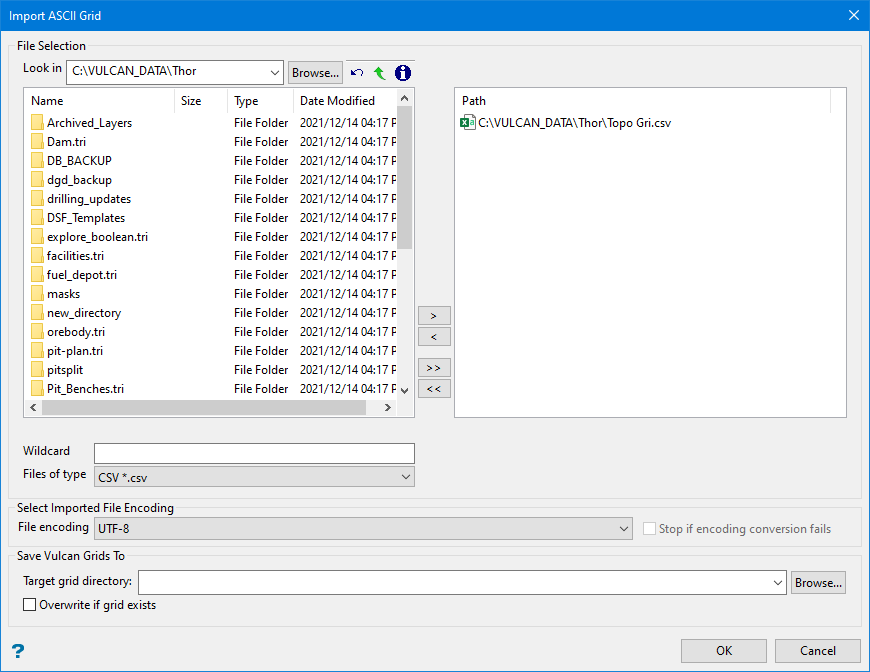
Browse for files using the Browse... button, or use the interface showing the available grid files in the current working directory.
Click on the name of the file(s) you want to select. Use the  icons to go to the last folder visited, go up one level, or change the way details are viewed in the window.
To highlight multiple files that are adjacent to each other in the list, hold down the Shift key and click the first and last file names in that section of the list.
To highlight multiple non-adjacent files, hold down the Ctrl key while you click the file names.
Move the items to the selection list on the right side of the panel.
- Click the
 button to move the highlighted items to the selection list on the right.
 - Click the
 button to remove the highlighted items from the selection list on the right.
 - Click the
 button to move all items to the selection list on the right.
 - Click the
 button to remove all items from the selection list on the right.
Wildcard
Enter the text to use as a filter, then press ENTER.
Use an * for multiple characters or a % to replace a single character.
Files of type
Use the drop-down list to filter the File Selection list to show only the type of files selected.
Select Imported File Encoding
You can change the type of encoding if necessary by selecting an option from the drop-down list.
Save Vulcan Grids To
Select the location where you want to store the resulting grid.
Defining Grid Names
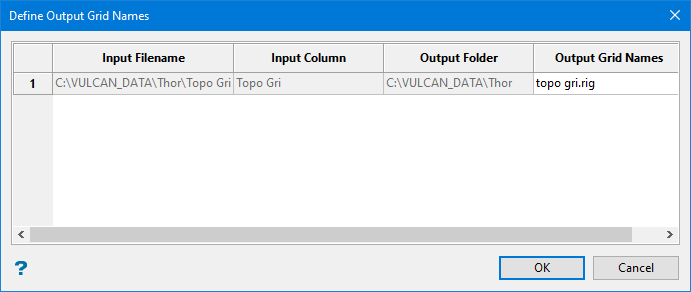
Use this panel to view information about any files you have imported. You can edit the name of the grid by highlighting the text in the Output Grid Names column.
Click OK.
