Replacing a Data Source
Follow these steps:
-
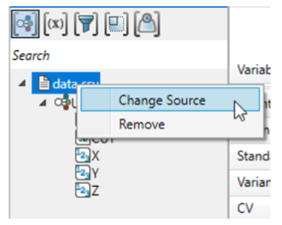
Open the Context Menu by right-clicking on the current data source.
-
Select Change Source from the context menu.
-
Browse and select a new file with the same extension as the original one. Vulcan Data Analyser will automatically update all charts using the data from the new file.
-
Handle Missing Variables.
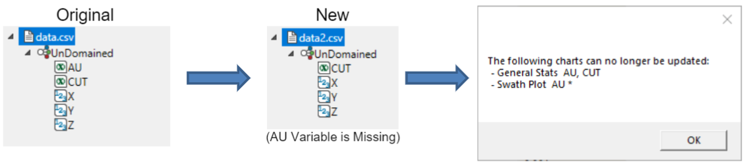
Sometimes, variables in the new file may be labelled differently even if they represent the same data. If the new file lacks required variables, associated charts will be disabled and cannot be modified. You will receive a notification listing the affected charts. The application will list variables from the original data source that are not present in the new one.
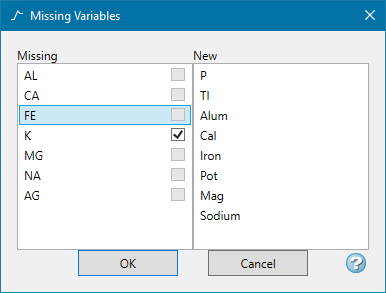
If the issue is caused by the variables from the two datasets having different names, you can manually match them:
- Select a variable under Missing.
- Select its counterpart under New.
- A matched variable is marked by a check in the checkbox.
 Note
NoteNot all variables will appear in the New list. The application only displays variables that share the same data type as those in the Missing list. For example, if the missing variables are numeric, then only numeric variables will be shown in the list.
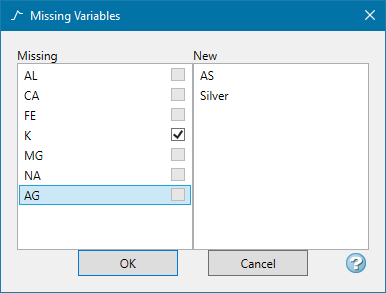
In the image below, the data for "AG" was formatted differently, so only "AS" and "Silver" appear for mapping.