

Load Blast
Use the Load Blast option to load existing blasts from the associated database.
This option utilises the Corporate Standards settings. For more information regarding the functionality of Corporate Standards, please refer to the Corporate Standards section.
The Corporate Standards  icon will only be displayed on panels if the
 VULCAN_CORPORATE environment variable was defined during the installation of Vulcan.
Instructions
On the Grade Control menu, click Load Blast to display the Blast Selection Parameters panel. Use this panel to specify which blasts to display in the selection panel.
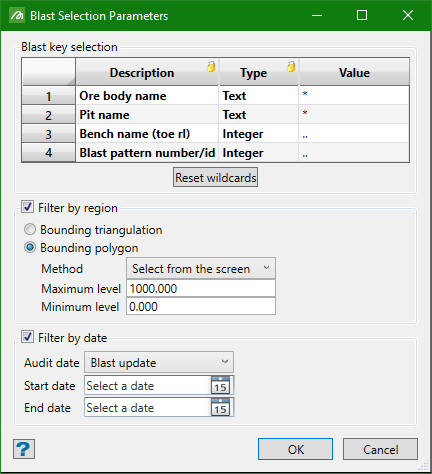
Description
Displays the name of the blast key fields. The number of blast key fields displayed (under the Description column) is dependent upon the headered database specified in the grade control configuration file (.gcv).
Type
Displays the variable type of the blast key field data.
Value
If you want to load a subset of samples within a blast, enter the value by which to select the samples. Wildcards can be used for numeric (integer) and text (string) fields. An asterisk (*) represents all entries in a text field and two decimal points (..) represent all entries in a number field.
Multiple patterns and wildcards can be specified by using a comma to separate them.
To limit further the blast values, use the following:
|
Number Fields |
number.. number |
Restricts the list of blast values to those between (and including) the two numbers. Example: |
|
number.. |
Restricts the list of blast values to those greater than or equal to the number. Example: |
|
|
.. number |
Restricts the list of blast values to those less than or equal to the number. Example: |
|
|
Text Fields |
L* (multi-character wildcard) |
Restricts the list of blast values to those that begin with a 'L'. |
|
L1? (single character wildcard) |
Restricts the records to those that consist of three characters starting with 'L1'. Example: |
Filter by region
Filter the blast data by selecting either a triangulation of polygon.
Tip: When filtering by polygon it is not necessary to create the polygon beforehand. You can digitise a new polygon while setting up the filtering panel, streamlining the process.
Filter by date
Use this to filter the blast data by date. Select a beginning and ending date using the calendars.
Click OK.
If more than one blast matches the specified query, then a listing of all matching blasts displays.
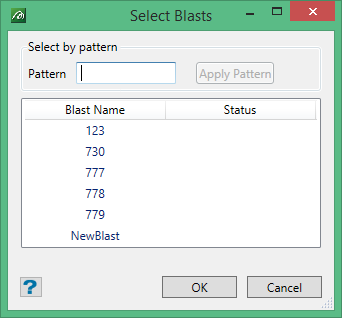
Any blasts that are already loaded are indicated by an arrow icon. To load a single blast, click on the blast name and click OK to load it. To load multiple blasts, hold down the Ctrl key and click the blast names to select them. You can also hold down the Shift key and click on two blasts to highlight those blasts and all the blasts between them in the list.
Click OK to load them.
