

Build Route Network
Edit a Predefined Route
Use the Build Route Network option to edit or find a predefined haulage route for a specified material type.
Tutorials
Click to view related tutorials.
Instructions
On the Open Pit menu, point to Haulage Profile, and then click Build Route Network.
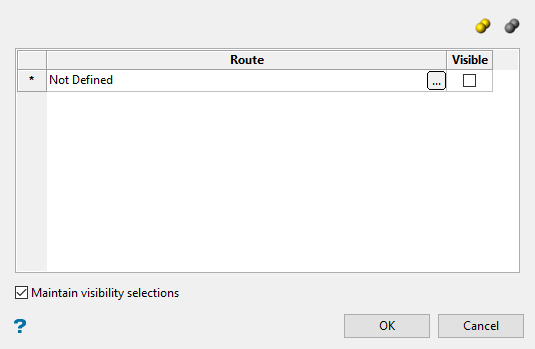
Route
This table lists the names of defined routes and the type of material for which they are defined. Routes may be loaded from different databases. Naming conventions suggest route names are prefixed by a letter representing the material to be transported, For example, O for Ore.
Click the
 option to display the Create Haulage Route panel and edit a route or create a new route.
You can set the visibility of each road by using the checkbox in the Visible column.
Use this option to create a haulage route using a series of road objects, and optionally include a pit and/or dump polygon to define the start and end of this route.
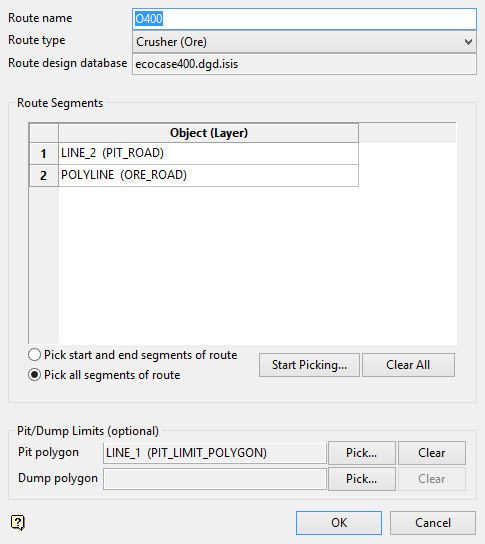
Route Name
Enter an identifying string for the new route.
Route Type
Select the route type from the drop-down string. Options are Crusher (Ore), Dump (Waste), Stockpile (Other).
Route design database
Displays the loaded design database.
Route Segments
Object (Layer)
Lists the available road objects to build this route. These objects are loaded from the current database. The road objects actually used in the route may be automatically determined by specifying the start and end segments of this route, or you may manually pick which road objects to use.
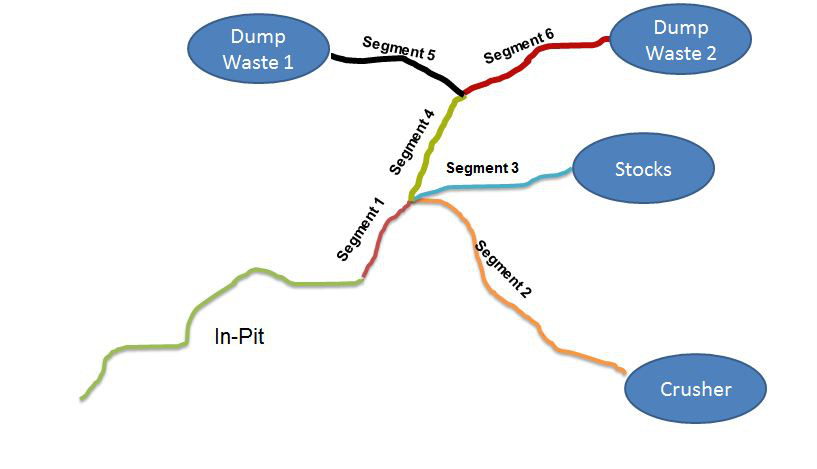
An example of road objects is shown below, which may be assembled into a route. In this case the route begins at the bottom left of the green line, and depending on whether the material to be transported belongs to the ore, waste or other category, respectively runs to Crusher, Dump Waste, or Stocks.
Pit/Dump Limits (optional)
Pit polygon
Identifies the pit polygon where this route starts.
Dump polygon
Identifies the dump polygon where this route ends.
