

Set View
Set the 3D View
Use the Set View option to rotate the view of design data by indicating the origin of a set of 3D axes and then rotating these axes relative to the current view or to the plan view by a specified angle of rotation.
Instructions
On the View menu, point to Change View, and then click Set View.
Indicate the axis position. The point you indicate will be the origin of the axes.
The following panel is then displayed.
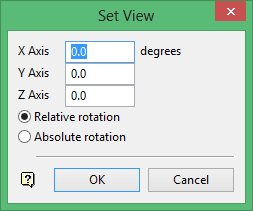
X/Y/Z Axis
Enter the degrees of rotation for the axes.
Relative rotation
Select this option to rotate the axes relative to the current view.
Absolute rotation
Select this option to rotate the axes relative to the Plan view.
Click OK.
The view is then rotated. The Set View panel displays again in case you want to rotate the axes again.
Was this page helpful?
