

Manual Precedences
Use the Manual Precedences option to manually create and delete precedences in Vulcan based on Vulcan objects and then send the precedences to the Gantt Scheduler.
Note: You can use Lava scripts to run automated tests for many of the most common options when setting up your project.
Instructions
On the Gantt menu, point to Precedences, and then click Vulcan Manual Precedences to display the Vulcan Precedences panel.
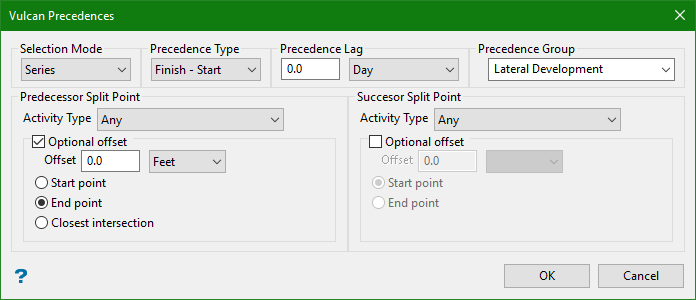
Selection Mode
Select Series, Parallel, or Pair to indicate how you want to select the objects for the precedence you are creating. If you select Series, you can select one predecessor and multiple successors that will be processed in a series. If you select Parallel, you can select one predecessor and multiple successors that will be processed in a series, and then you can select additional series of predecessors and successors that will all run in parallel. If you select Pair, you will be prompted to select one predecessor and one successor, and then you can select additional pairs of predecessors and successors.
Precedence Type
Select Start - Start, Start - Finish, Finish - Start, or Finish - Finish to indicate the precedence type. For example, if you select Finish - Start, it indicates that the first activity in the precedence must be finished in order to start the second activity.
Precedence Lag
If there is a lag time between the activities in the precedence, enter the length of the lag time and select the unit of time from the list.
Precedence Group
Enter or select a name for precedence group in the Group box. The precedence information is then sent to the Gantt Scheduler.
Predecessor Split Point
This section specifies information for the initial activity in the precedence.
Activity Type
Select the activity type of the predecessor from the list. The list includes all activity types that exist in your Gantt specification (.vgantt) file. If the activity type is unspecified, select All.
Point Type
Select Start point, End point, or Closest intersection to indicate the point type of the predecessor. The Closest intersection and Optional offset options allow the Gantt bars to be split and precedences created between parts of activities.
Optional offset
Enter a value for the offset and select a unit of measure from the list.
Note: The optional offset only works for design data and is in reference to the nominated point (start, end, or closest intersection).
Start point, End point, Closet intersection
Select a point type. This selection specifies whether the point you indicate in Vulcan for the successor will be a starting point, ending point, or the closest intersection.
Successor Split Point
This section specifies information for the following activity in the precedence.
Activity Type
Select the activity type of the successor from the list. The list includes all activity types that exist in your Gantt specification (.vgantt) file. If the activity type is unspecified, select All.
Optional offset
Enter a value for the offset and select a unit of measure from the list.
Note: The optional offset only works for design data and is in reference to the nominated point (start, end, or closest intersection).
Start point, End point
Select a point type. This selection specifies whether the point you indicate in Vulcan for the successor will be a starting or ending point.
Save Precedence in Layer
Select this check box save precedences currently in an underlay to a layer.
Click OK.
You will then be prompted to select a predecessor and successors by clicking the objects in Vulcan. When you are done selecting objects, right-click to exit selection mode. The Option menu displays. You can click Accept Precedences to accept all precedences that you selected, Undo Last Precedence to undo the last precedence you selected and continue selecting, Reject Precedences to reject all precedences that you selected and start selecting again, or Cancel to reject all precedences that you selected and exit the option.
