

The Database
Select from a composite database or block model.
Open Data Source
Drag and drop data sources directly into the Data Explorer from either the Windows Explorer or from the data tree in the Vulcan Explorer.
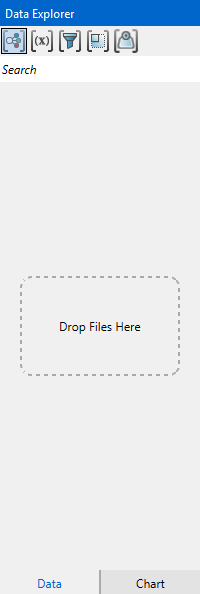
Alternatively, on the Data tab, in the Data Sources group, click Open Data Source.
Click this option to open a dialog window allowing you to locate an ISIS composite database (.cmp.isis) or block model (.bmf). When you have made your selection, the Explorer Visibility pane and the Data Explorer pane will automatically populate with the database field and variable information.
Explorer Visibility
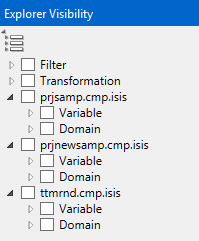
Click the blue title bar with your mouse to expand or collapse the Explorer Visibility pane.
The Explorer Visibility pane displays any database you may have open. You may load more than one database up at one time. The limit is machine specific and depends on the memory of the computer you are using.
The lists can be expanded by clicking on the small  icon, as shown above. All the lists can be collapsed by clicking the
  icon.
icon.
Modifiers
Filters, Transformations & Weights
You can apply filters to your data such as ranges in value, including or excluding specific values, limiting by triangulation boundaries, or field restriction limitations by attributes. You can apply a logarithmic or Normal Score transformation. Weights can also be applied.
After any data modifiers have been defined they will appear in the lists located in both the Explorer Visibility pane and the Data Explorer pane.
Important: Data modifiers are not stored in the ISIS database after they have been defined. Therefore, if you do not save your project within VDA, any modifiers you create will need to be recreated the next time you open the project. You can save a project by File > Save or File > Save as or clicking the Save icon on the Quick Access Toolbar.
Variable
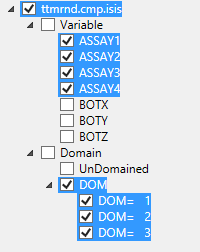
Click the arrow next to Variable view all fields from the database. Check the box next to a field to select it for use in analysis. You may select as many fields as you wish. As you select a field in the Explorer Visibility pane, it will appear in the Data Explorer pane.
Domain
A list of domains is automatically generated by searching through text fields. You may select a domain for use in a study by clicking the box beside the name of the domain. When you select a domain it will appear in the list in the Data Explorer pane, as shown below.
Data Explorer
In the Data Explorer pane you can group the way the information is viewed by clicking one of the four icons at the top of the pane. As you select more data in the Explorer Visibility pane, more data will be listed in the Data Explorer pane.
You can organize the way data is viewed by grouping the data by domain, variable, filter, transformation, or weight. Do this by selecting one of the five icons seen at the top of the Data Explorer pane.
Search
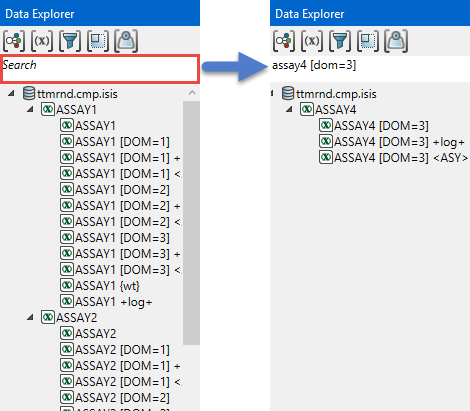
You can conduct searches by entering the name of the domain or group into the search box directly below the grouping icons. Note that the search entries are not case sensitive.

|
Group by domain. |

|
Group by variable. |

|
Group by filter. |

|
Group by transformation. |

|
Group by weight. |
