

Predefined Solids toolbar
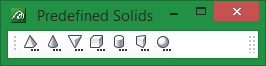
The Predefined Solids toolbar allows you to quickly create predefined triangulation solids, such as spheres, pyramids and cylinders. The Predefined Solids toolbar consists of the following icons:
|
|
Square pyramid |
|
|
Cone |
|
|
Triangular pyramid |
|
|
Box |
|
|
Cylinder |
|
|
Triangular rod |
|
|
Ellipsoid |


The triangulation solids can be created through either clicking or right-clicking on an available button - the latter will result in a Properties panel being displayed. The settings defined through a Properties panel, which will allow you to control the colour, name and storage location for the resulting triangulation file, will be used whenever you click on an button in the current Vulcan session.
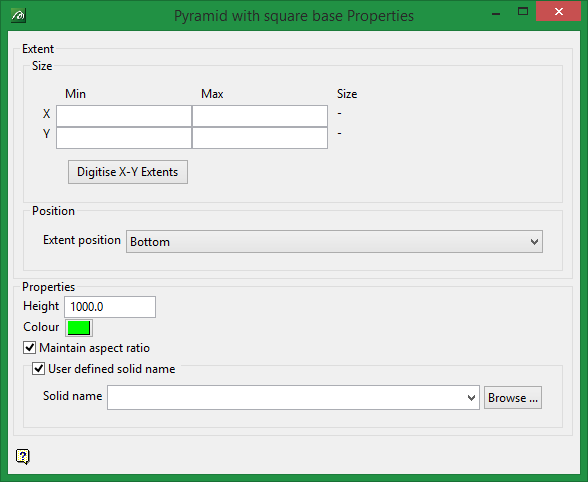
Extent
Enter the extents for the resulting triangulation. The X and Y coordinates can either be manually entered or digitised onscreen using the Digitise X-Y Extents button. In order to manually define the extents, you will need to enter both the minimum and maximum values for the X and Y coordinates.
Digitise X-Y Extents
When this button is clicked, the Properties panel will 'collapse' and you will be asked to digitise the extents. To do this, click with the mouse to indicate the first point and drag the "rubber band" rectangle in any direction to the second point. Click to accept the second point and to return to the Properties panel.
You will also have the ability to specify where to position the model's extents, for example top, middle or bottom.
Tip: We recommend that you complete the details in the Properties sections prior to specifying the extents.
Properties
The Properties section allows you to control the height, colour, file name and storage location for the resulting solid triangulation.
Maintain aspect ratio
Select this check box to maintain the height and width ratio of the resulting triangulation.
User defined solid name
Select this check box if you want to name the resulting triangulation file. The list contains all triangulations in the current working directory. Click Browse to select a file from another location. Selecting an existing file will prompt you to confirm that you want to overwrite the file's original contents.
To create a new file, enter the file name and file extension.
Use defined solid name
If this check box is not selected, then Vulcan will assign a generic file name and the resulting file will be stored in your current working directory. The assigned name is based on the type of solid created, for example 'Cylinder001.00t' or 'Ellipsoid001.00t'.
