

Tables
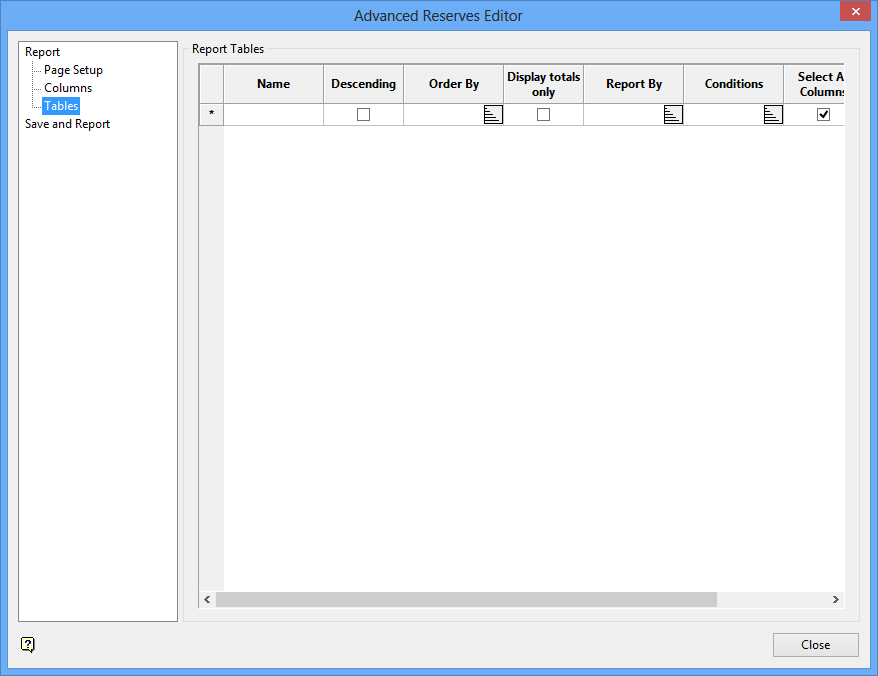
This section also to add, delete or change tables in the report tables list. For each table, you specify the columns to be reported, the columns by which to order and whether or not only totals are to be reported. Up to 60 tables can be specified.
It is possible to copy and paste rows from tables by using the right-click context menus. Simply right-click in the row heading to access the menu and then select 'copy' or 'paste'. Alternatively select the appropriate cell(s) and click the Ctrl + C keys to copy, or the Ctrl + V keys to paste.
Name
Enter the table name. The name must be unique in the list of tables.
Descending
Select this check box to sort the values in descending order. If this check box is not checked, then the values are sorted in ascending order.
Order By
Specify the column(s) by which to order. Select the
 button to specify more than one column. Once selected, the Order By panel displays.
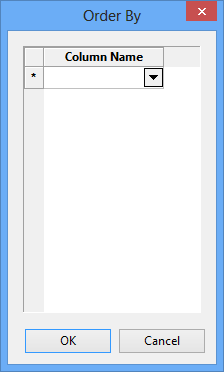
Select the desired columns from the drop-down lists.
If no columns are specified, then the rows remain unsorted, that is, in the same order as the dump file. If a chosen column is also to be used for subtotalling (see the Report By option), then ensure that the column is the last one specified in this field.
Note Columns based on column internal functions, or columns calculated on output, cannot be used.
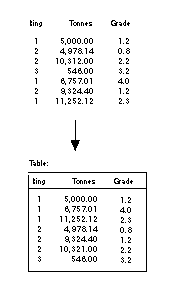
Example - Order by Ring Column
Only Display Totals
Select this check box to report only the total values.
Report by
Specify the column(s) for which subtotals will be reported. Select the
button to specify more than one column. Once selected, the Report By panel displays
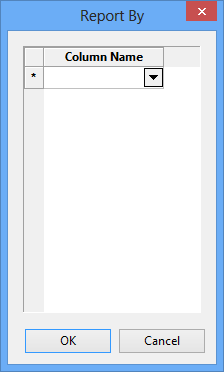
Select the desired columns from the drop-down lists. Every time the column value changes a subtotal row displays in the table.
If you are also ordering by this column, then make sure that this column is the last one specified in the Order By field.
Note As subtotalling is performed before reporting column values, columns calculated on output cannot be used.
Character columns are excluded from the report if they are not used for ordering or subtotalling. Numeric columns are always included, except when the Only Display totals box is not checked (see Column Definition panel in the Columns option).
Conditions
The condition fields allow you to select which rows to include in the table based on whether certain column conditions are met. All columns with data can be used when defining a condition. The following example shows a condition that will select only those rows with a copper grade between 1.4 and 6.0:
cu_ivd gt 1.4 and cu_ivd lt 6.0
Up to 5 conditions may be entered, with each condition containing a maximum of 1024 alphanumeric characters. All conditions must be true before a row is included in the table. Refer to Appendix B of the Vulcan Core documentation for a full list of available operators/functions.
Note The Derived Column and Calculate on Output features, available from the Columns option table, are selectable options that are also used to calculate additional columns in the Advanced Reserves report. As such, they are not eligible for use when defining a condition.
Either all columns can be used in the table or a subset.Select all columns
Select this check box to select all of the columns. If this option is selected, then the columns appear in the table as in the columns list.
Selected columns
If the Select all columns check box is not selected, then the Select columns column will be enabled. Select the
button to specify more than one column. Once selected, the Selected Columns panel displays.
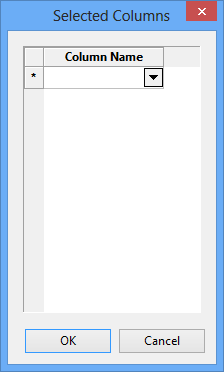
Select the columns from the drop-down lists. The columns appear in the table as per selection. For example, if column 5 was selected followed by column 3 and column 1, the columns appear in the table as 5, 3 and 1.
If subsets are selected, then the columns used to order and report by must be included in the subset. Selecting a column does not necessarily mean that it displays in the table. See the description of the Report by option.
Related topics
- Report
- Page Setup
- Columns
- Tables
- Save and Report
