

Import Micromine Database
Instructions
On the File menu, click Import to display the Import panel.
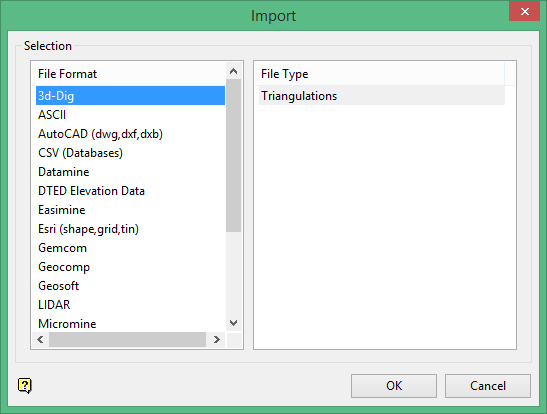
Click Micromine in the File Format column on the left.
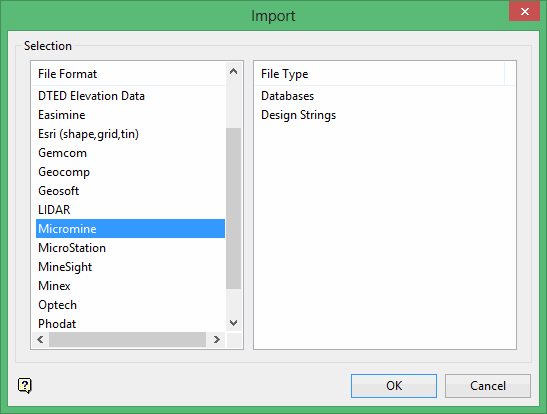
Select Databases from the File Type field on the right side of the panel.
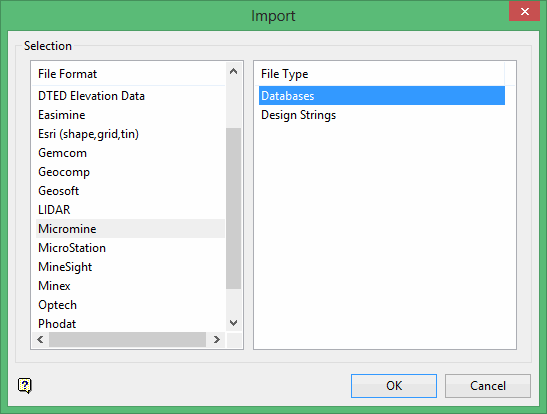
Click OK to display the Import Micromine Database panel.
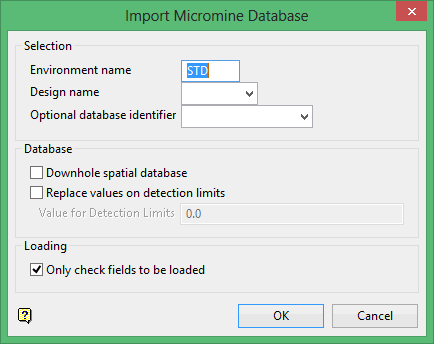
Environment name
Enter the environment in which you want to place the Micromine database. The current environment displays by default.
Data Sheet Name
Enter, or select from the drop-down list, the name of the design (<dsn>) of the Vulcan database. Refer to the Isis > File > New Design option for information on how to create designs.
Optional Database Identifier
Enter the name of the database identifier. Applicable only if more than one database is created from the design.
Database
Downhole spatial database
Select this check box to run the Load Data into Downhole Spatial Database option immediately after the database has been imported. The Load Data into Downhole Spatial Database option (see Vulcan Database Management menu) creates the .dsr database that is required for non-vertical drill holes.
Replace values on detection limits
Select this check box to replace numeric fields that have a leading '<' character with a specific value. These fields indicate that a reading was detected but is too small to be accurate. By default, the import/conversion process strips the '<' character and reads the number in the Micromine file. If this check box is selected, then any values with '<' will be replaced by the value entered through the Value for detection limits field.
Loading
Only check fields to be loaded
Select this check box to check the Micromine fields for errors during loading and log them to a report file. Only fields written to the Vulcan database are checked. Any errors in other fields are ignored and the data is converted normally.
If this check box is not selected, then all errors will be reported. If an error is reported, then that record is NOT loaded, even if the field with the error is not a field being loaded into the Vulcan database.
Click OK.
The Specify files panel displays. This panel contains a list of all of the tables in the design and you are required to specify the ASCII file (in full) corresponding to each table.
The first field in each ASCII file must be the borehole id. Entries in the files must have a corresponding entry in the collar file otherwise they will not be imported. The maximum line length on the ASCII files is 400 characters, the maximum number of fields per line is 100 and character fields use (FIELD_LENGTH) / 4 field positions.
Click Next.
The Match Fields panel displays. This panel contains a list of the fields in a table and you are required to specify the corresponding ASCII file field. A Match Fields panel displays for each table. The section at the top of the panel contains a list of the Micromine fields and field numbers obtained from the ASCII file. Use the section to match the Vulcan table fields with the Micromine ASCII file fields. Vulcan will enter default values if the Vulcan field name is the same as the Micromine field name.
Click Next.
The Field Codes to be Substituted (field replacement) panel displays. This panel allows the specification of certain codes found in numeric fields and the supply of values to replace these codes. Up to 10 field codes can be replaced. Entries where the field code is blank (default) are ignored, even if a value is entered.
Field Substitution only works for Micromine NUMERIC fields, and the codes are case sensitive.
The data is loaded and any errors or warnings are displayed in a shell window. See below for a list of messages together with an explanation. Check the Database Listing file (.dbl) for any missing data.
If the Downhole Spatial Database check box was selected, then the Load Data into Spatial Database option will be run directly after the import.
Error/Warning Messages
| Message | Explanation |
|---|---|
<micromine_file> has a record for the hole <holeid>, which has no collar record, this hole will not be loaded. |
The hole has no entry in the collar file. The hole cannot be loaded as the hole id in the collar record is the key field. |
<micromine_file>, the error "<error_message>" occurred. At or near the line "<error_line>". Field <name>. Between columns <start, end>. Invalid section is <bad_bit>. |
The holes contain some form of syntax error. The field name given is the Micromine field name, the start and end columns are the position of the database field in the line. The error line and invalid section are the line in the file and the section in the line respectively where the error occurred. Any hole for which is error is produced is not converted/loaded. |
<micromine_file> has a record for the hole <holeid>, which has no collar record, this hole will not be loaded. |
There is a record for a hole in the collar file, but it is missing one or more of the other files. This message is just a warning. All the other records for this hole are still loaded. |
