

Geological
This topic includes information about the Geological branch of the Implicit Modelling Editor.
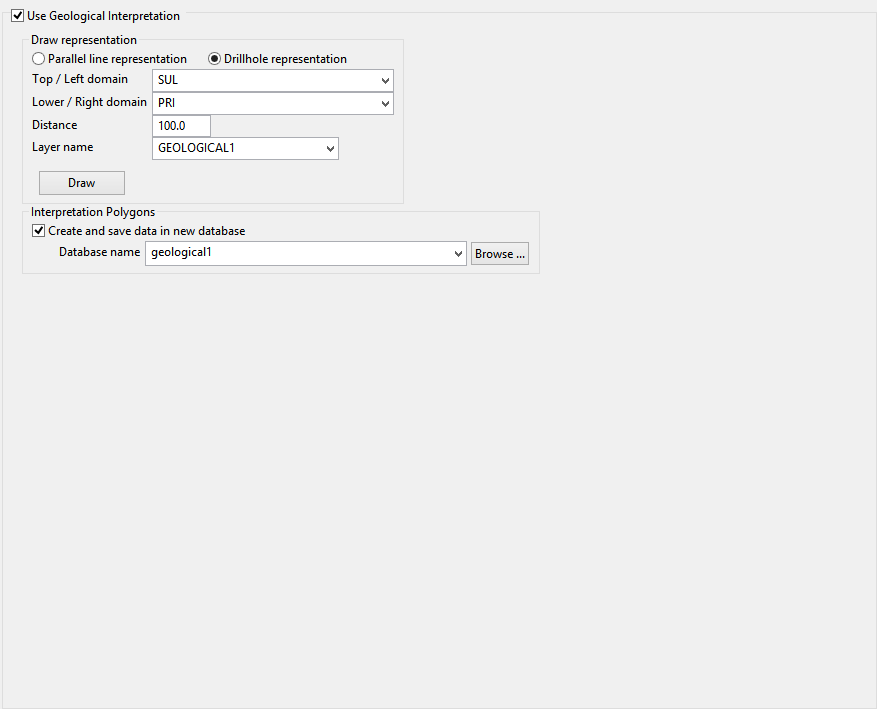
Use Geological Interpretation
A tool to interactively add drillholes in implicit modelling.
In some cases, implicit modelling creates separate solids for the same rock type and the geologist needs to fill the empty spaces. To create a complete solid, it is necessary to add drillholes into the database. For this it is necessary that from implicit modelling the drillholes can be represented on the screen, add them into a layer and give the user the option to save this data into a new database. For this, an option has been added called Geological Interpretation.
Instructions
After running implicit modelling, select the specification file to modify and then go to the Geological pane.
Select Use Geological Interpretation.
Select the visual representation you want.
Then select the top / left domain, the lower / right domain, the distance, and enter the layer name (or select an existing one).
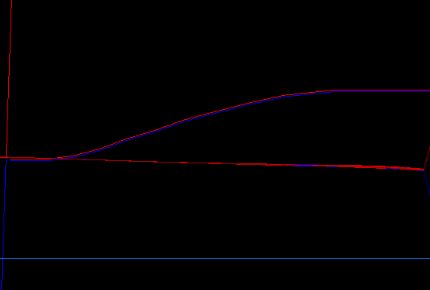
In Parallel line representation, the distance will be saved into the value attribute of the lines created and the lines will be separated by 1 meter.
In Drillhole representation, the distance will be the size of the entire drillhole.
With the data filled, click the Draw button to create the representation. The representation will be saved into the layer selected.
Parallel Representation
Drillhole Representation
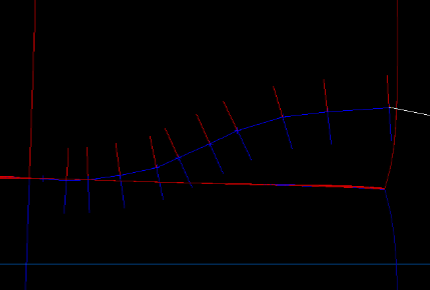
Note: The colour of the lines will be the same of the rock types selected in the domain's tab.
Note: The centre line is just a guide and does not affect the results.
Once the drawing has completed, right-click to display the context menu with 3 options:
-
Save layer : Saves the new representation into the selected layer. A message will appear to confirm the decision.
-
Continue drawing : Lets you continue creating the representation.
-
Cancel : Does nothing and return to the panel.
With the layer saved, you are able to run the implicit modelling process again. Make sure that the Use Geological Interpretation checkbox is selected and the layer name is selected.
If the user select Create and save data in new database, the new database is created on the process, copying the database selected on the specifications and inserting the new drillholes.
If the database exists will be replaced. If is not selected, the new drillholes will be inserted into the database selected in the specifications tab.
Click Apply and run.
Finally the objects will be marked with a letter P in the Feature value. This means that the object was processed and will not be used again. (This prevents duplicated drillholes in the same database.)
