

Import From AutoCAD
Use this option to import data from an AutoCAD file (.dwg, .dxf, or .dxb).
Prior to using this option, we recommend that you verify that the correct coordinate system and units of measurement are being used.
Splines are exported as a polyline of all the points that Vulcan uses to actually draw the spline (not just the control points). Therefore, if a spline were exported from Vulcan and imported back into Vulcan, it would be imported as an ordinary polyline.
Vulcan will import every single text object as a 3D text object.
Instructions
On the File menu, click Import to display the Import panel.
Click AutoCAD (dwg, dxf, dxb) in the File Format column on the left.
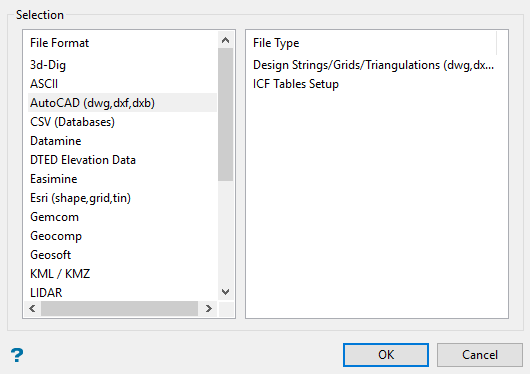
Select Design Strings/Grids/Triangulations (dwg,dxf,dxb) File Type field on the right side of the panel.
Click OK to display the Import AutoCAD Files panel.
Selection tab
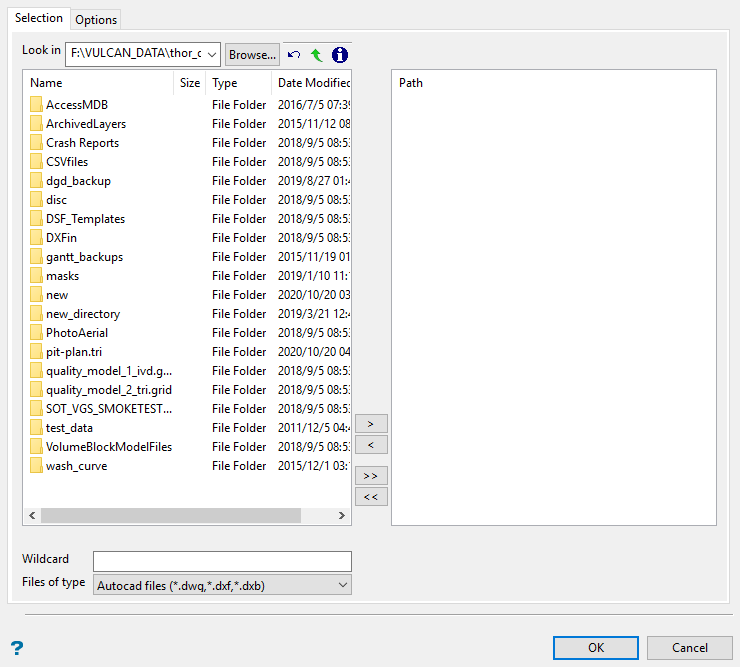
Select the files (.dwg or .dxf) that you want to import.
File Selection
Browse for files using the Browse button, or use the interface showing the available grid files in the current working directory.
Click on the name of the file(s) you want to select. Use the  icons to go to the last folder visited, go up one level, or change the way details are viewed in the window.
To highlight multiple files that are adjacent to each other in the list, hold down the Shift key and click the first and last file names in that section of the list.
To highlight multiple non-adjacent files, hold down the Ctrl key while you click the file names.
Move the items to the selection list on the right side of the panel.
- Click the
 button to move the highlighted items to the selection list on the right.
 - Click the
 button to remove the highlighted items from the selection list on the right.
 - Click the
 button to move all items to the selection list on the right.
 - Click the
 button to remove all items from the selection list on the right.
Wildcard
Enter any characters used as wildcards. Wildcard characters can be an * as well as regular characters.
If the topo_* were used as a wildcard, the result might be topo_area2_aerial, topo_min, or topo_with_pit.
Files of type
Use this to filter the file types that display in the search list.
Options tab
General
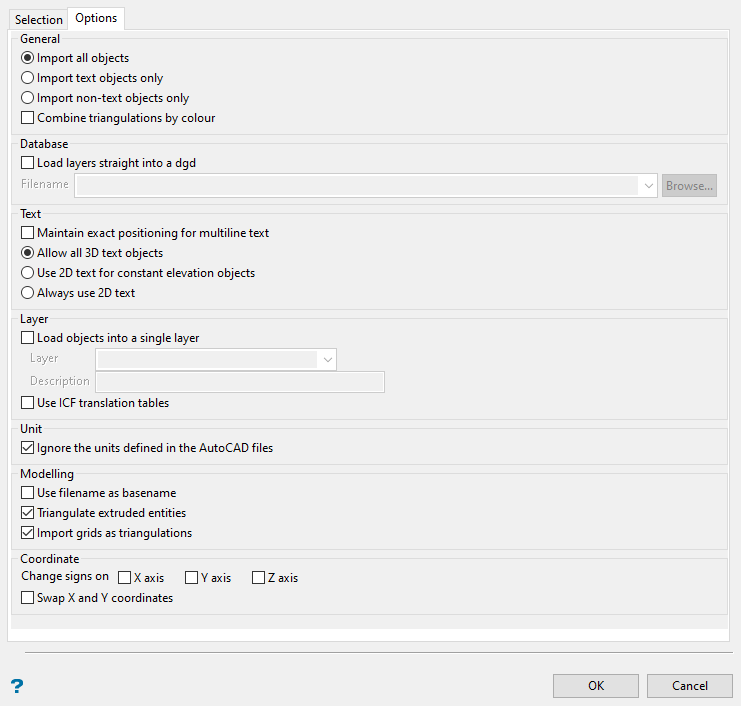
Select whether to Import all objects, Import text objects only, or Import non-text objects only.
Combine triangulations by colour
Select this option to group incoming triangulations by colour.
Database
Load layers straight into a dgd
Select this check box to load the contents of the selected files into a nominated design database. The drop-down contains the names of all design databases (.dgd.isis) found in your current working directory. Click Browse to select a file from another location. If this check box is not selected, then the data will be imported into the currently open design database.
Text
Maintain exact positioning for multiline text
Select this check box to maintain the exact location of all lines when importing a multiline text object. The imported text object will be separated into single line objects that will preserve the positioning based on the line spacing in the corresponding data file.
If this check box is not selected, then the lines of the multiline object will be imported as a single object. In this case only the first line is ensured to be at the right location whereas the position for subsequent lines of text will be based on the line spacing and font size.
Allow all 3D text objects
This is the default behaviour.
Use 2D text for constant elevation objects
Use this option to convert 3D text that has a direction vector in the z-axis of 0 into 2D text.
Always use 2D text
This will interpret all 3D text objects as 2D text objects.
Layer
Load objects into a single layer
Select this check box to load the contents of the selected filed into a nominated layer. The drop-down list contains the names of all layers found in the currently open design database.
If you selected the Load layers straight into a dgd check box, then the drop-down list contains the names of all layers found in the nominated design database.
If the layer exists, a dialog box displays where you can choose whether to append the imported data to the layer, choose the replace (overwrite) the existing layer, or cancel. You can also select the Always perform this action check box to continue the action for this import instance. The setting will not remain for future import instances.
Unit
Ignore the units defined in the AutoCAD files
Select this check box to ignore the unit settings stored in the chosen files. We recommend that you use this option to prevent coordinates from being converted because of mismatching unit settings.
Modelling
Use filename as base name
Select this to use the original filename as the name for the imported file. If this is not selected, the file will be given a numeric name.
Triangulate extruded entities
Select this check box to triangulate the extruded entities that have been imported.
Import grids as triangulations
Select this check box to import grids as triangulations. If unchecked, the result will be grid files.
Coordinate
Use this option to change signs on the X, Y, or Z axis, or to swap the X and Y coordinates.
Click OK.
