

Database
Use the Database option to export an existing database to a Database Listing file (.dbl).
You can use a text editor to view and edit this file. This is quite useful if you need to recover a database that may have been corrupted due to a power failure or if you need to transfer data to another application. You can use the Import Database option to re-load these files.
Instructions
On the Utilities menu, point to Export, and then click Database to display the Select Database panel.
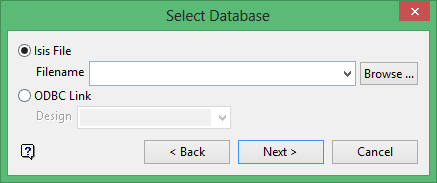
Isis File
Select this option to nominate an Isis database. The available drop-down list displays all Isis database files found within your current working directory. Click Browse to select a file from another location.
ODBC Link
Select this option to nominate an ODBC link database. Select the design name from the drop-down list.
Click Next.
The following panel is then displayed.
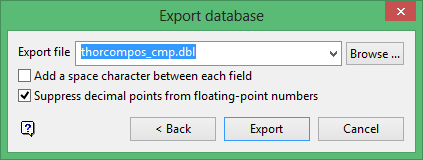
Export file
Enter the name of the Database Listing file (.dbl). The default name, which is derived from your entries in the Select Database panel, will be <proj><name>_<dsn>.dbl.
where
<proj> is the project
<name> is the database name
<dsn> is the design name
Add a space character between each field
Select this check box to use a space to separate the fields in the resulting Database Listing file.
Suppress decimal points from floating-point numbers
Select this check box to suppress the decimal points from floating-point numbers.
Click Export to export the database.
The progress of the exporting process displays on the screen. Once the database has been exported, you will be informed of the number of objects exported.
