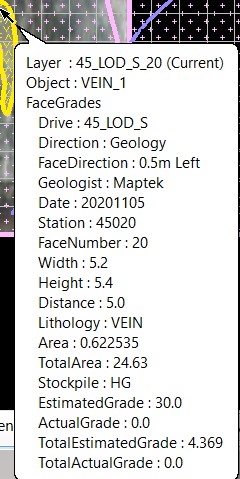
Face Grades
Allows the quick and automatic calculation of the area weighted grade of the face based on the polygon areas and estimated grades of each lithology (rock type), as well as assigning the stockpile and face direction attributes.
Instructions
On the Face Mapper menu, point to Mapping, then click Face Grades.
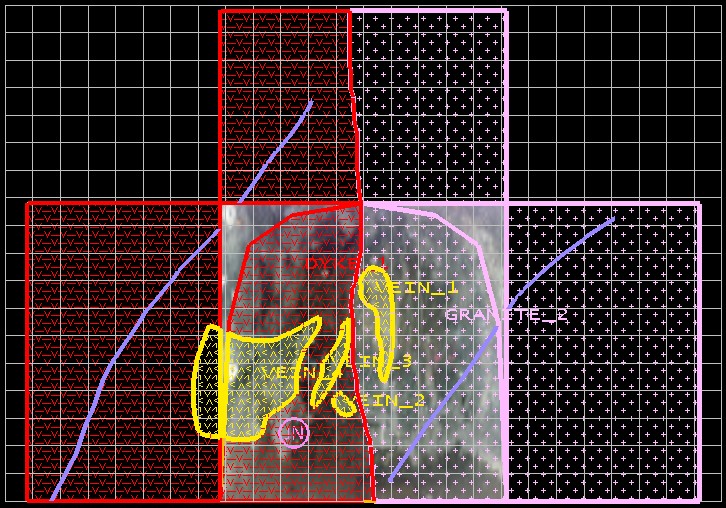
This tool labels each polygon that falls within the Face template and populates the grid to allow easy identification of each polygon in the panel.
Note: This tool is required to be run for all face maps, as it assigns all the required attributes for many other functions and for importing into the SQL database.
Name
The Object name of each polygon.
Lithology
The lithology (or feature code) assigned to each polygon.
Area
The calculated area of each polygon.
Estimated grade
Populated from estimated grades (defined in the Estimated grade defaults in the Face
Grades settings) for each lithology – these can be manually edited in the panel. If a ‘facereservegrades.json’ file is present in the ‘Spec’ sub-directory then the values in the ‘estimated grade’ tags in the .json file will be applied in this panel.
Actual grade
Populated manually later from samples or other assay information for each lithology – these can be manually edited in the panel. If a ‘facereservegrades.json’ file is present in the ‘Spec’ sub-directory then the values in the ‘actual grade’ tags in the .json file will be applied in this panel.
Total area
The calculated total area of all polygons within the face template.
Total estimated grade
The weighted face grade calculated for the total face using estimated grades, calculated in real-time within the panel as changes are made to the values in the estimated grade cells.
Total actual grade
The weighted face grade calculated for the total face using actual grades, calculated in realtime within the panel as changes are made to the values in the actual grade cells.
Stockpile
The stockpile can be selected from the drop-down list, which is populated from the 'stockpile destinations' in the Face Grades settings.
Direction
Whether the drive is under Survey or Geology control. If ‘Survey’ is selected the Face direction drop-down box will be disabled.
Face direction
If ‘Face direction’ is enabled in Create Resources then the Face direction can be selected from the drop-down list, which is populated from the 'Face direction options' in the Face Grades settings. If ‘Face direction’ is disabled in Create Resources then this option won’t appear in the panel.
Instructions
Adjust any values in the Estimated grade cells as desired, pick the desired stockpile from the dropdown-list in the Stockpile cell, select the desired options from the Direction and Face direction dropdown-lists and select OK. The tool will then write all these values, along with all the face and spatial reference information collected previously, into corresponding templated attributes.