

Export ASCII (Design Strings)
Use the Export ASCII (DesignStrings) option to export design string information to an ASCII file.
Instructions
On the File menu, click Export to display the Export panel.
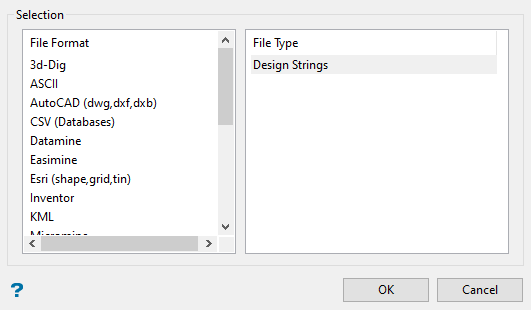
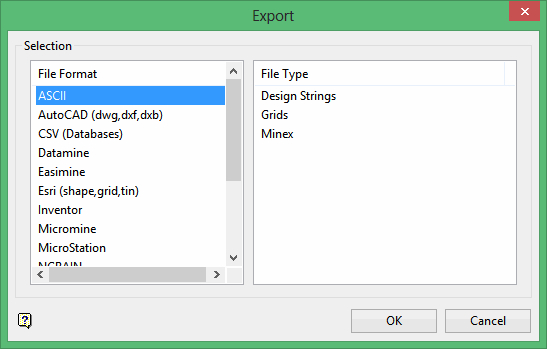
Click ASCII in the File Format column on the left.
Select Design Strings from the File Type field on the right side of the panel.
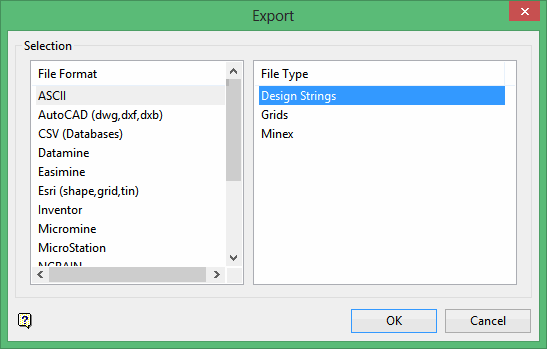
Click OK to display the Export to ASCII panel.
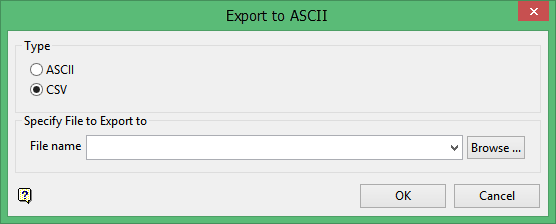
Type
Select a file type for the export. Select ASCII to export the design objects into a formatted ASCII file. Select CSV to export the design objects into a character separated CSV file.
Specify File to Export to
Select or enter the file name to export the file into.
Click OK to display the Export to ASCII detail panel.
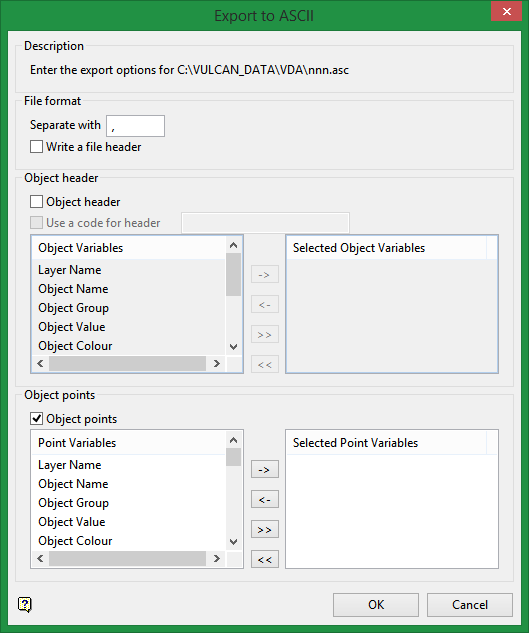
File format
Separate with
For CSV files only, enter the character that will be used to separate the fields in the resulting file in the Separate with box. The default separator is a comma, but any character can be used. To use the Tab character as the separating character, enter \T in the box.
Write a file header
Select this check box to include a file header in the resulting export file. The header will list the attributes chosen through the Object header and Object points sections.
Object header
Select this check box to create a line containing a set of attributes (a maximum of 8) for each exported object.
Use a code for header
Select this check box to insert a code into the object header attributes line of each exported object. The inserted code can contain up to ten alphanumeric characters.
Object points
Select this check box to define the attributes (a maximum of 10) that are to be exported for each object point.
Click OK.
The Select By menu displays.
Click on the method you want to use of selecting the objects for export (Object, Group and Layer, Feature and Layer, Layer, Group, Feature, Name, or All).
Select the objects you want to export. The objects are shadowed as they are selected to avoid the same object being selected more than once.
When you have selected all the objects you want, click Cancel to return to the Export to ASCII panel.
Result
The design strings are exported to ASCII formatted files and a confirmation message displays. The resulting ASCII file will be placed in your current working directory.
