

Sections Toolbar
This option is the interface that works in tandem with the Sections floating toolbar.
The Sections floating toolbar can be located by right-clicking on the right-hand or bottom toolbar of the Vulcan workspace window to reveal the menu, and choose Sections.
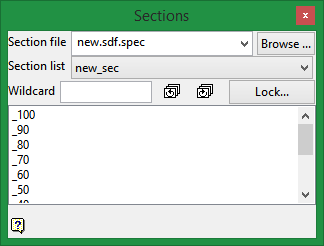
Section file
Select a section file from the drop-down list or browse for a file from the directory.
Set Identifier
Select the set identifier from the drop-down list. If only one set identifier has been created for the associated section file then it will automatically be listed.
Wildcard
Enter the name of the section view you wish to start with or enter an asterisk (*) which will be used as a wildcard to include everything.
Toggle through the list of views using the  icons.
Lock / Unlock button
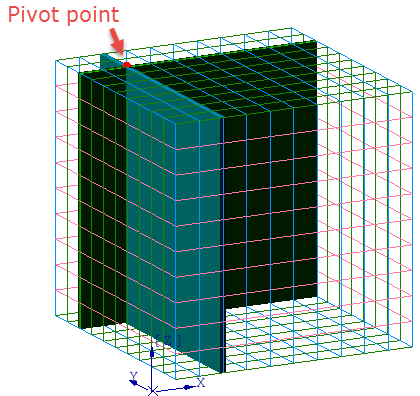
This button locks and unlocks a pivot point around which the Easting, Northing and Plan views will rotate.
For example, in the image below the red dot has been selected as the pivot point. The section showing for the Easting view will be the dark green. The section showing for the Northing will be the blue-green. The section showing for the Plan view will be the top surface. All sections have the pivot point in common.

|
Click to lock the coordinates of a pivot point. |

|
Click to unlock the coordinates of a pivot point. |
| [SPACEBAR] |
Alternates between Lock and Unlock. |
Note: To take full advantage of this feature, we suggest setting customised hotkeys for Easting, Northing and plan view. (The Customise option can be found on the Workbench menu, then clicking on Customise.)
Instructions
Assign customised hotkeys for commands Switch to Easting, Switch to Northing and Switch to Plan Section, which are found in the View menu.
While in plan view, click the button then select a location for the pivot point.
To switch between section views, simply press the hotkeys.
