

Check VGSKEY
This function aids in keeping objects in Vulcan synchronised to activities in VGS.
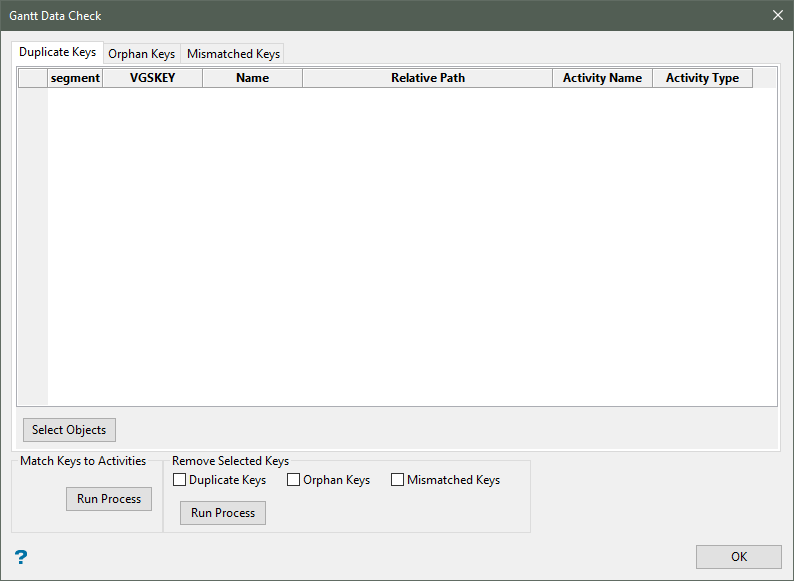
On the Gantt menu, click Check VGSKEY to display the following interface.
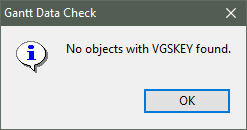
If no VGS keys are found, then the following notification is displayed.
Instructions
After all the layers and triangulations have been loaded into Vulcan, click Gantt > Check VGSKEY.
A list of any duplicate keys will automatically be listed on the pane labelled Duplicate Keys. Similarly, orphan keys and mismatched keys will be listed on separate tabs as well. If no issue are found, then nothing will be listed. However, it is possible for one tab to show a list of issues while another tab shows none.
Selecting individual objects in the list
To select an issue from the list, click on the Row Number in the left column to highlight the entire row, then click the Select Objects button. The selected object(s) will then be highlighted in the Vulcan window.
Selecting all objects in the list
To select all objects in the list, click on the upper left cell to highlight the rows, then click the Select Objects button. The selected object(s) will then be highlighted in the Vulcan window.
Match Key to Activities
Click Run Process to see if any of the selected keys match your activities.
Remove Selected Keys
Select from Duplicate Keys, Orphan Keys, and / or Mismatched Key to flag any selected objects listed for removal. Next, click the Run Process button to remove the keys.
