

Select new observation locations
The Select option to select data on the screen, and use the location of that data as the location of a structural record in the structural database. The data can be selected by group, feature or layer. Additional data, such as structure type, can also be specified.
If you select an oriented line (for example the dip line of a symbol created using the Slope option under the Geotech > Analysis submenu), then the orientation of that dip line will be used in the structural record as the XYZ location.
It may be a good idea to set up a new geotech group (database key), such as SELECT, which will store all data created (via the Select option), to keep it separate from other data types, for example imported and digitised.
Instructions
- Select Geotech menu
- Select Utilities submenu
- Select Select option
The Multiple Selection box displays. From this box, choose your method of selecting objects and select the objects. Each object is highlighted before displaying the data entry panels.
The dip and dip direction are displayed as a circle and arrow in the Primary window.
If you chose to use the object name as the site identifier (through the Data Entry Setup option), then the site identifier will be taken from the chosen object name. If this is not the case, then the Structural Data Entry panel displays instead.
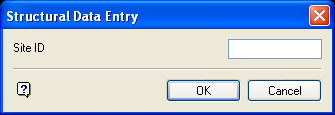
Structural Data Entry panel
Enter, or select from the drop-down list, the site identifier for the location you digitised. If you chose to increment site identifier (through the Data Entry Setup option), then the numeric part of the site id will be incremented by one for each location specified.
Select OK.
The following panel is then displayed. This panel may be displayed multiple times depending on the number of selected objects. For example, if you have five objects on the screen representing five slope symbols (created by the Slope option under the Geotech > Analysis submenu), and you select the dip line component of the symbol by feature, you will be prompted five times to view/edit the information in the Structural Data Entry panel.
The field values for the specified record will be updated or appended. If you have chosen to update records and a record with a matching site identifier field value is not found, then you will be prompted to append a new record. The new structural data displays using the display method (point, structure object or orientation halo) that you specified in the Data Entry Setup option.
