

Domain Manager
Use this option to create domains quickly.
There are two ways to create domains.
-
Click the green plus icon in the Explorer Visibility panel, or
-
Click the Domain Manager icon in the Data ribbon.
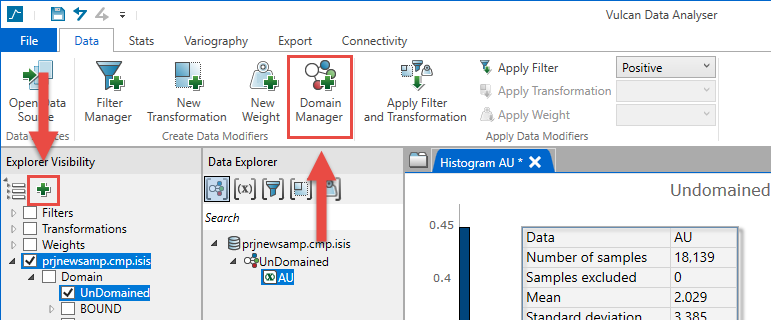
Using the green Plus icon:
- Click the green Plus icon in the Explorer Visibility panel to expose the New Custom Domain panel, as shown below. All string variables will be listed along with their unique values.
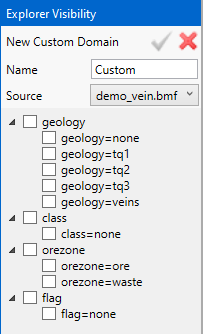
Note: Numeric variables will not be shown.
- Select the variable(s) you want to evaluate. Any data that is contained within the selected variables will be combined into a unique domain.
-
Enter a unique name into the Name field. Spaces are not allowed in the name.
-
Click the green check mark to save your selection.
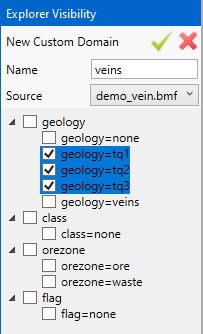
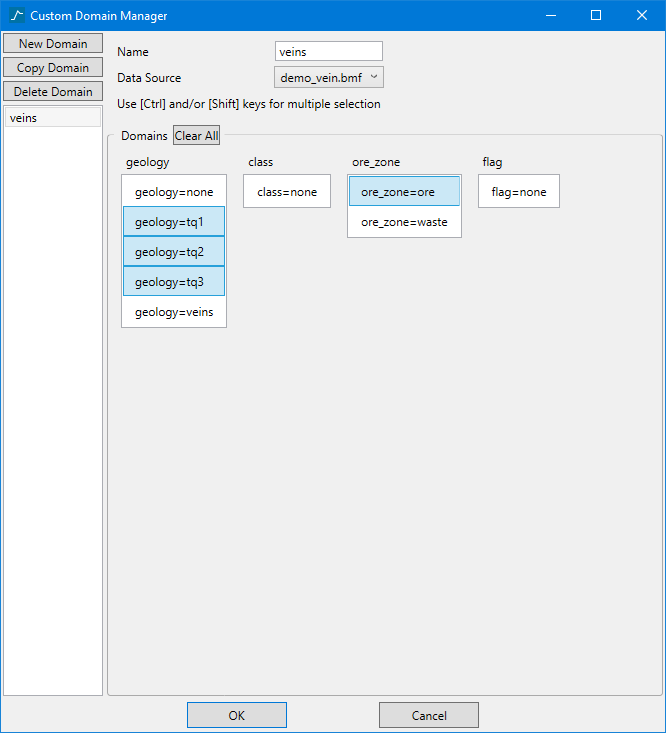
The same principle is use with the Custom Domain Manager.
-
Click the Custom Domain Manager icon in the Data ribbon. All string variables will be listed along with their unique values.
-
Click New Domain and give the new domain a unique name. Spaces are not allowed in the name.
-
Select the combination of domains you want to evaluate. Use the Ctrl or Shift keys to select multiple values.
-
Click OK.
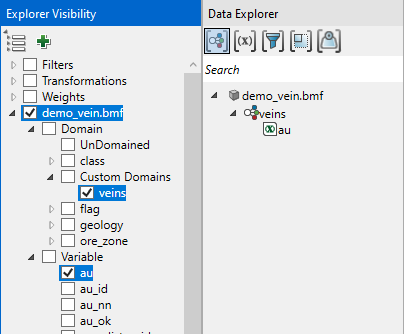
With both methods, the resulting domains will be listed under the heading Custom Domains in the Explorer Visibility panel, as shown below.
Select any number of custom domains, along with any variables, to make them available for analysis in the Data Explorer panel.
Exporting Domains to Calculation Scripts
After you set up a custom domain, you can export the domain information to a block model calculation script or a database calculation script.
Follow these steps:
-
On the Export tab of the ribbon, click the Script icon in the Domains group.
-
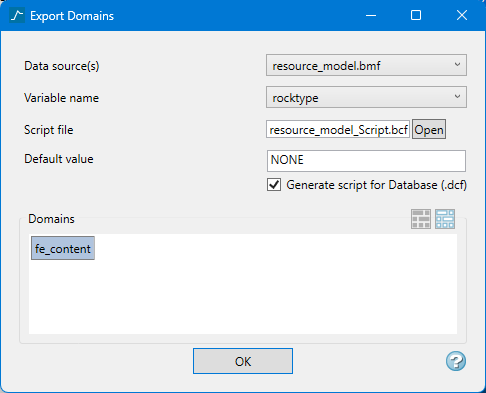
Check that the Data source is correct. If not, use the drop-down list to select the correct source.
-
Select the variable name from the drop-down list. The items in the list are the names of the string variables found in the data source you are using.
-
Enable Generate script for Database if you want to export both a bcf and a dcf file for the domain selected.
-
Click the Open button next to the field containing the name of the script file. An Explorer window will display allowing you to enter a new name for the file and let you select where to store it. By default, it will be saved to your current working directory.
-
Click on the Domain icons listed in the window. You can select more than one if you wish.
-
Click OK. The script file will be saved to the location you selected in Step 4.
You can run the script as it is by clicking Block > Manipulate > Execute Script, or edit it using Vulcan's text editor, or any other text editor.
