

Paste Object
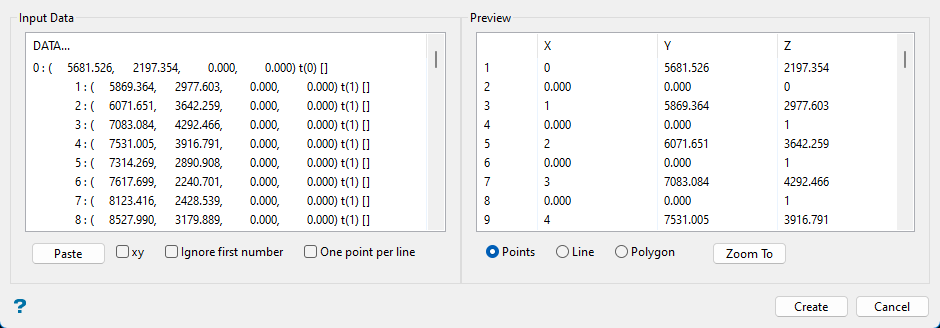
Use this option to create a layer of points, a line, or a polygon using a delimited set of point data from the clipboard.
Instructions
On the Design menu, point to Create, then click Paste Object.
Follow these steps:
-
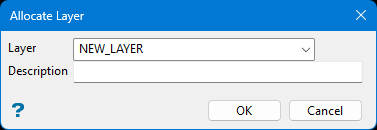
Enter the Layer name, or select the layer from the drop-down list. The list will show all layers currently loaded onto your screen.
-
Copy the point data from your source to the Windows clipboard.
-
Click Paste to import the copied data to the panel.
Note: If you copy the data before opening Paste Object, the copied data will automatically populate the panel. You can always copy some other data from a file, then click Paste it to create new or additional object rather than closing the panel and starting again.
-
Enable the xy option to import X and Y values only while using the default Z value. The Z value used is the default value set in the main Vulcan window.
-
Enable Ignore first number if you have a column of numbers that are not X values, such as index numbers.
-
Enable One point per line to extract only one point per copied line of data. Without this option enabled, it will extract an XYZ point using the first three numbers found on a line, the continue using the same line to extract the next XYZ values.
ExampleOne
Without enabling Ignore first number or One point per line, the first three numbers found in the line (index, x, y) would be used as your XYZ values, and the next three numbers (x, assay, domain) would be used for the next XYZ values.

index        x              y              z           assay       domain
0 : (     5681.526,      2197.354,      200.000,       0.243)       t(9)
1 : (     5869.364,      2977.603,        0.000,       0.000)       t(9)
point 1: 0, 5681.526, 2197.354
point 2: 200.000, 0.243, 0
ExampleTwo
With xy, Ignore first number, and One point per line enabled, the first number(index) is ignored, the x and y values are used for X and Y, and the default Vulcan Z value (Z = 0) is used for the Z value.

index        x              y              z           assay       domain
0 : (     5681.526,      2197.354,      200.000,       0.243)       t(9)
1 : (     5869.364,      2977.603,      202.000,       0.000)       t(9)
point 1: 5681.526, 2197.354, 0.000
point 2: 5869.364, 2977.603, 0.000
ExampleThree
With Ignore first number and One point per line enabled, the first three numbers found in the line (index, x, y) would be used as your XYZ values, and the next three numbers (x, assay, domain) would be used for the next XYZ values.

index        x              y              z           assay       domain
0 : (     5681.526,      2197.354,      200.000,       0.243)       t(9)
1 : (     5869.364,      2977.603,      202.000,       0.000)       t(9)
point 1: 5681.526, 2197.354, 200.000
point 2: 5869.364, 2977.603, 202.000
-
Select either Points, Line, or Polygon to create the define the type of object. The results can be viewed immediately without closing the panel.
-
Click Zoom to centre the results on your screen.
-
Click Create to complete the operation.
-
Click Cancel to close the panel without saving.
