

Create
Create Insitu Block Layouts
The Create option to create in situ block layouts on your dragline sections. Prior to using this option, you will need to:
- Create dragline section arrows and layers, using the Sections > Create option.
- Define an horizon table, using the Horizons > Create Horizon option.
- Create horizon surface strings on the sections, using the Horizons > Create Surfaces option.
- Create strip objects on the sections, using the Strips > Create option.
- Set highwall profiles on each strip, using the Strips > Highwall Profile option
Insitu blocks are created on each section by intersecting each strip's highwall profile with each section's horizon surfaces. On each section, the number of insitu blocks created will be equal to the number of strips times the number of horizons. Insitu blocks of negligible area are automatically classed as Null blocks and are made invisible.
In each section layer, block polygon objects are created with the name:
BLK_<block_number>
and for each block object created, there will be a block label object created with the name:
BLB_<block_number>
The block number indicates the order in which the block is created on the section. It starts at one (1) and continues to the number of blocks on the section. The blocks polygons will appear on the screen with the colours, line types and patterns specified in the horizon table. The block labels will appear on screen, in the centre of each block polygon and, by default, will inherit the horizon labels set in the horizon table.
The Create option will also create point objects at the intersections of highwall profiles and horizon surfaces. These points can be used as named positions when recording macros.
Instructions
On the Dragline menu, point to Blocks, and then click Create.
The Create blocks dialog box displays.
If a Dragline specifications file (.rsp) was not opened prior to selecting this option, then the Open Dragline Specification panel displays first.
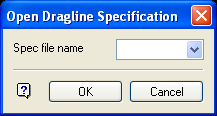
Open Dragline Specification panel
Spec file name
Enter, or select from the drop-down list, the <spec_file_id> part of the dragline specifications file name. The maximum size is 6 alphanumeric characters. Selecting a name from the drop-down list will open an existing specifications file. Entering a new name will create a new specifications file.
Click OK.
The Create blocks dialog box contains the following options:
Apply to current section only
Select this option to create blocks on the current section only.
Apply to all sections
Select this option to create blocks on all loaded sections.
Blocks will be created automatically once an option is selected. A status bar displays the progress of the block creation on each section.
If block movements exist on a specific section, then you will be informed that they will be overwritten and asked whether or not you want to proceed.
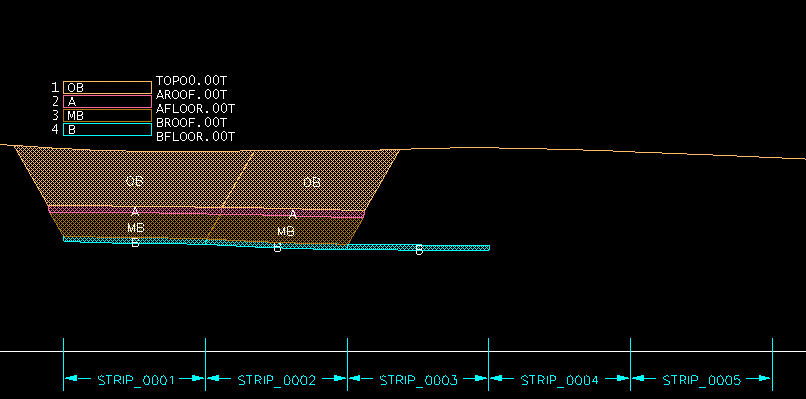
Figure 1: Block Creation Process
Upon completion, you will have a series of insitu block layouts and you will be ready to start moving the blocks around using the Blocks > Move Blocks options.
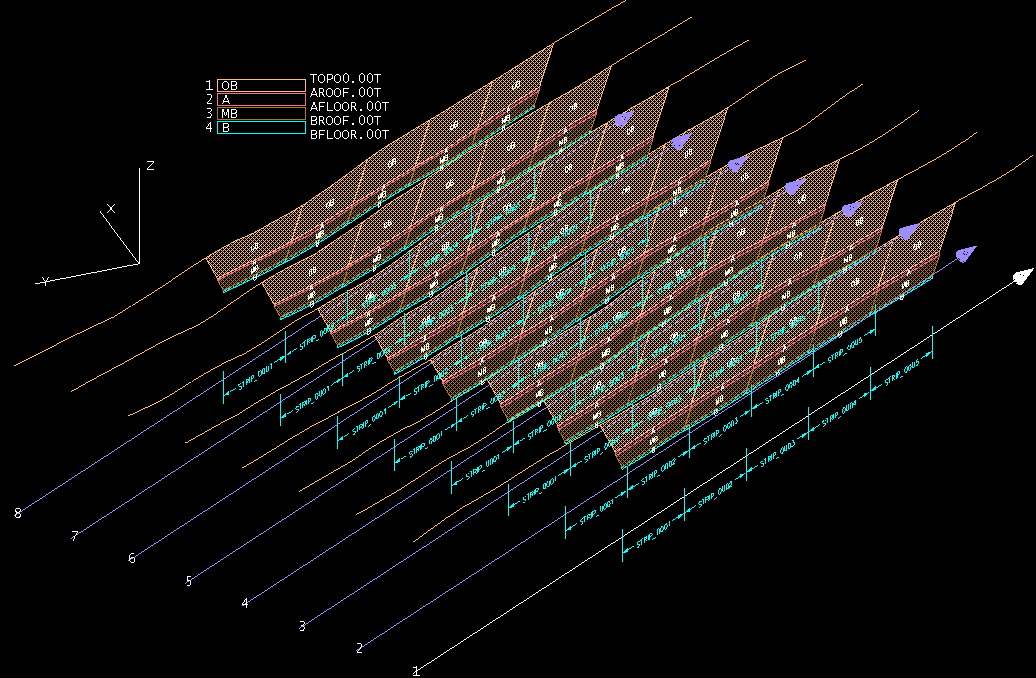
Figure 2: Insitu Block Layouts
