

Tables
Use the Tables option to export database tables to a file. The tables can be exported as CSV (character Separated value) or formatted tables. With CSV tables, the individual fields in the records are separated by a character, for example, a comma. With formatted tables, the fields are written to a column that are the width of the field separated by a space.
Note: You can also use conditions to export particular records from one or more tables.
Instructions
On the Utilities menu, point to Export,and then click Tables to display the Select Database panel.
The following panel is then displayed.
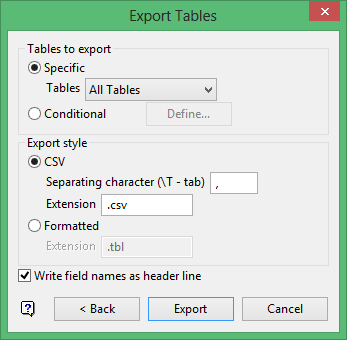
Tables to export
Select All tables to export all of the tables in the database, Single table option to export a single table or By Condition to export records from tables that match specified conditions.
To specify the conditions, select the Define button. Once selected, the Enter Record Selection Conditions panel displays.
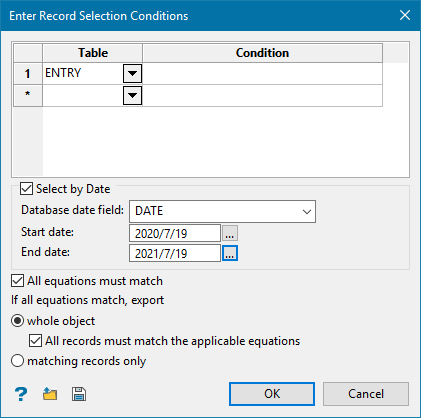
Select the table on which to apply the condition.
Note: When using text fields in the condition, you must use double quotes for any field values. For example, HOLEID=="L22", will include the record that has a hole ID of 'L22'.
You must then choose whether to export matching records or the whole object. The matching records option will export only the records from the specified table that match the condition. The whole object option exports records that match the condition from all of the tables.
I f a database has four tables (HOLEID,
ASSAY, SURVEY and GEOL), and you specify the condition HOLEID=="L11"
on the HOLEID table using matching records, then only the matching L11
record from the HOLEID table is exported, whereas if you used whole object,
then the L11 record from all of the tables will be exported (in the first
case one export file is created and in the second four files.)
Select by Date
Use this to limit the exported tables to only those that fall within a selected date range.
Using the drop-down list, select the database field that contains the date, then use the calendars to select a starting and ending date. The information exported will include the beginning and ending dates.
All equations must match
Select this check box to export tables only if they match all the equations specified. Select whether to export either the whole object or matching records only if all the equations match.
Use the Save
button  to save your conditions
and the Open button
to save your conditions
and the Open button  to load existing conditions.
Export Style
CSV
Select this option to export the tables as a CSV (Character Separated Value) table. Fields in CSV files are usually separated by a comma, however, any character can be used. You can also change the file extension.
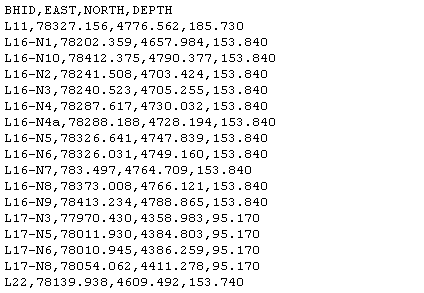
Figure 1: Character Separated File
Note: While exporting to CSV, if the first character of a text field other than key field is a double quote character and provided that it is the only double quote character in the text, the starting double quote will be removed to avoid formatting issues in CSV file.
Formatted
Select this option to export the tables as a formatted table. In formatted tables the fields are in columns separated by a space character. You can also change the file extension.
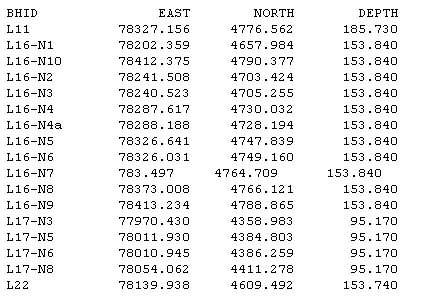
Figure 2: ASCII Formatted File
Write field names as header line
Select this check box to write the field names as a header line in your CSV or formatted table. In the examples shown above the field names are written in the header line.
Note: If a filed name is too long, then it will be truncated to the data length.
Click Export to export the tables. The progress of the exporting process displays on screen. Once the database has been exported, you will be informed of the number of objects exported.
