

Save As
Use the Save As option to save existing databases and designs under a different name. In this way you can create new databases and designs from existing files. It is also possible, by using the Key Fields panel, to create a new database that contains selected objects from an existing database.
The following information is only applicable if you are trying to save a database. If you are trying to save a design then refer to the Save Design As option.
Instructions
On the File menu, click Save As to display the Save Database As panel.
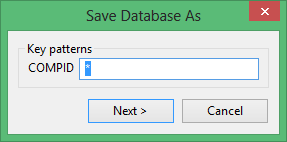
This panel contains a list of the key patterns, which are are the key fields from the database.
It is possible to limit which individual records will be included in the new database. An asterisk (*) represents all entries in a text field and two decimal points (..) represent all entries in a number field (whether of integer, single or double type).
To limit the individual records further, use the methods outlined in the table below.
| Number Fields | number.. number | Restricts the records to those between the two numbers, that is, 50.. 120. |
| number.. | Restricts the records to those after the number, that is, 25.. | |
| .. number | Restricts the records to those before the number, that is,.. 34 | |
| Text Fields | L* (multi-character wildcard) | Restricts the records to those that begin with an L, that is, L11 or L16-N4 |
| L1? (single character wildcard) | Restricts the records to those that consist of three characters starting with L1, that is, L11, L1A. |
Click Next.
The following panel is then displayed.
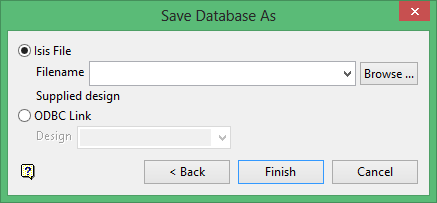
Isis File
Select this option to create an Isis File database. You will need to enter the file name or select it from the drop-down list. The drop-down list contains the names of previously selected files. Click Browse to select a file from another location. If the specified file already exists, then you will be asked to confirm whether or not you want to overwrite this database.
Note: When a new database is created, the format will be as follows: <id>.<dsn>.Isis where <id> is the identified and <dsn> is the design name. The design name must be three characters. Note that the identifier can be comprised of the project prefix with an optional additional identifier (<id> = <proj><odi>).
ODBC Link
Select this option to create an ODBC Link database. You must enter, or select from the drop-down list, a design.
Click Finish to save the new database or Back to alter the entries in the Key Fields panel or Cancel to end the option without saving.
