

Filter
Filter Triangulations
Use the Filter option to reduce the size and complexity of triangulations by removing triangles that meet user-specified criteria. For example, you might remove all of the triangles that have an area less than or equal to 1m2. It also enables you to remove excess data that causes the formation of small triangles (facets).
Refer to the Overview section for information on the problems caused by small triangles.
Instructions
On the Model menu, point to Triangle Edit, and then click Filter option.
Select the triangulation. If there is only one triangulation loaded onscreen, then it will be automatically selected.
The following panel is then displayed.
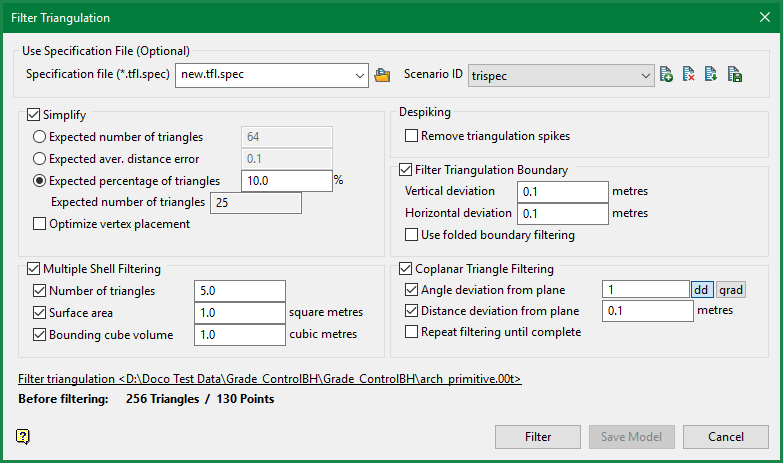
Specification file ( *.tfl.spec )
Use the drop-down list to select the specification file if it is in the current working directory, or browse for it in another location by clicking the Browse button. You may also create a new file by typing the name of the new file in the textbox.
Scenario ID
Use the drop-down list to select the ID file, or create a new one by clicking the New icon.
-
 New
New -
 Delete
 -
 Save as
 -
 Save
Save
The name of the triangulation displays at the bottom. Triangulation statistics are also provided (number of triangles, number of points).
A combination of the following filtering tools can be used until the desired level of filtering is achieved. Examples of cases where a specific type of filtering might be appropriate are provided. However, the scope of each filtering method is not limited to the examples.
Simplify
Expected aver. distance error
This is the measure of the average deviation for the whole facet. It is not exactly the average distance between the 2 facet networks but rather an indication of that average distance.
Optimise vertex placement
If this check box is selected, the new point resulting from an edge collapse is positioned to minimise the error introduced by the edge collapse. Otherwise, the existing vertex resulting in the smallest error will be used. Setting this true will result in a netter quality mesh at a higher execution cost, estimated at about 50% slower.
Despiking
Select this option to remove the triangulation spikes. Despiking is a process in which large spikes in the triangulations are truncated.
Multiple shell filtering
This option allows filtering triangulations that contain multiple disjoint sections (shells).
Triangulations that have been created by shelling an existing triangulation or from a block model using grade shells can contain multiple shells. These shells vary in size, many of them are very small and are of no real value. Shells with a really small volume may cause problems when calculating the volume of the whole triangulation.
Number of triangles
Select this check box to remove a shell if it contains less than the specified number of triangles.
Surface area
Select this check box to remove a shell if it has an area less than the specified area.
Bounding cube volume
Select this check box to remove a shell if it has a bounding cube volume that is less than the specified tolerance. The bounding cube of a shell is the cube formed by joining the eight extreme points of the shell.
Filter triangulation boundary
This option allows filtering triangulations that contain complex boundary strings or a boundary strings with a large number of points. It is valid only for open triangulations. Triangulations that have been created by relimiting an existing triangulation to a polygon or by a boolean operation contain many additional vertices along the boundary. The triangles that connect these vertices tend to be extremely thin and cause problems with some utilities.
Vertical deviation
Select this check box to remove boundary points that deviate vertically from the boundary string by less than the deviation.
Horizontal deviation
Select this check box to remove boundary points that deviate horizontally from the boundary string by less than the deviation.
Triangles that contained deleted points are removed and the boundary is reconstructed.
Use folded boundary filtering
Select this check box if the triangulation contains boundary strings that cross when looked at in plan view. Folded boundary filtering is slower than normal boundary filtering, but is necessary for many surfaces.
Co-planar triangle filtering
Select this check box to filter triangulations that contain co-planar data. Triangulations that have been created by converting a grid mesh, using trend surfaces or interpolation can often contain co-planar data.
Note: Co-planar triangle filtering may remove breakline information from topography triangulations. Always use small tolerances when filtering data containing breakline information.
Angle deviation from plane
Enter the minimum angular deviation that a triangle must have from the surface to be retained. The deviation is measured from a "seed triangle" used to define a planar boundary.
Distance deviation from plane
Enter the minimum distance deviation that a triangle must have from the surface to be retained. The deviation is measured from a "seed triangle" used to define a planar boundary.
Repeat filtering until complete
Often a single filtering pass is not sufficient to remove all of the triangles that are considered co-planar. Iterative filtering using different "seed triangles" is sometimes necessary.
Click Filter.
The triangulation is then filtered. You can press [Esc] at any time to cancel the filtering process.
Once the filtering process has been completed, the Filter Triangulation panel is redisplayed with some extra information and options included. The number of triangles and points removed in the current pass and in total displays, as well as the number of triangles and points in the original and filtered triangulation.
You can also choose to save the filtered triangulation specs using Save Model (in which case the Resultant Triangulation panel displays).
