

Set Up Rose Diagram
The Set Up Rose Diagram option to specify the defaults for displaying Rose Diagrams.
Instructions
On the Geotech menu, point to Display, then click Set Up Rose Diagram. The following panel is displayed.
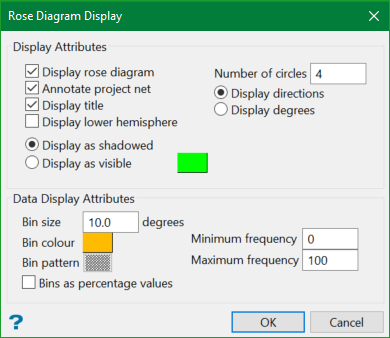
Rose diagrams may be displayed by using one or more of the following attributes:
Display Attributes
Display rose diagram
Select this check box to display the projection net. You will need to enter the number of concentric circles in the diagram. These circles aid in determining the size of each data bin.
Annotate projection net
Select this check box to annotate the edge of the Rose Diagram with either degrees, or with compass style directions. The annotations are in scalable fonts, and therefore can be changed (that is rescalable) using the regular Vulcan text editing options.
Display title
Select this check box to display the title of the Rose Diagram.
Display directions
Select this option to display the cardinal directions around the diagram.
Display degrees
Select this option to display net notches at the same interval set for bin size.
Display lower hemisphere
Select this check box when displaying the structural data on the Rose Diagram as 3D vectors (see the Load To 3D option).
Display as shadowed/visible
The Rose diagram can be shadowed or displayed in a specified colour. The colour is selected from the current colour table.
Data Display Attributes
Bin size
This relates to how the dip direction values are divided up by the data bins. Each bin is a bar projecting from the centre of the Rose Diagram. The length of each bin denotes how many structures have a dip direction value in the range for that bin. This may also be expressed in terms of percentages if the Bins as percentage values check box is ticked.
Bin colour/fill pattern
Select the required colour and pattern for the bins.
Minimum frequency
Enter the frequency at the centre of the Rose Diagram.
Maximum frequency
Enter the frequency found at the outer circle of the Rose Diagram. Bins are clipped to the outer circle if their frequencies exceed the maximum.
Select OK.
The Rose Diagram display net is then shown.
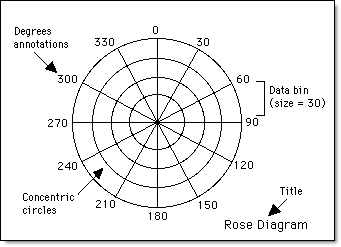
Figure 1: Rose Diagram Setup
The above diagram shows some of the elements of a Rose Diagram. Distributions of the dip direction values are displayed in the various ranges. These ranges are set at 30 degree intervals, with 4 concentric circles, degree values and titles as annotations.
