

New Weight
Apply a weighting scheme to the data involves two steps
Instructions
On the Data tab, in the Create Data Modifiers group, click New Weight.
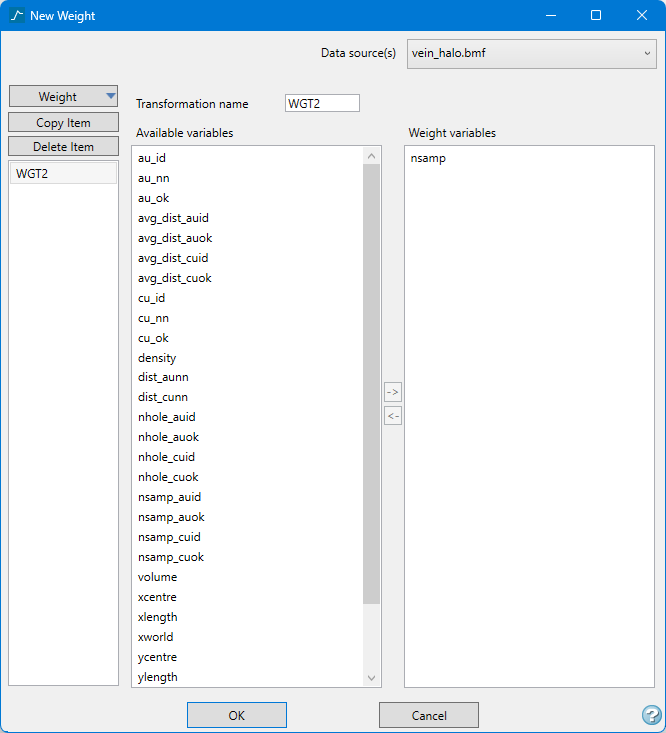
Follow these steps:
-
Click the Weight button in the left side column.
Click the Copy button to create a new filter using all the parameters of the current filter that is in focus.
Click the Delete button to delete the current filter that is in focus.
Important: Warning! If you delete a filter, the operation cannot be undone!
-
Select the Data source(s) by using the drop-down list in the upper right corner.
-
Enter a name for the new filter into the field labelled Transformation name if you do not want to use the default name.
There are no character restrictions. As you type a name, it will be display in the column on the left side. The column of names will always be visible while you are editing in the panel.
Note: When the weight is first created the name is highlighted in red, indicating that there is still something that needs to be done before the filter is ready to be saved. While a name is highlighted in red, the OK button will not be in focus and you will not be able to click it to save any changes.
-
Highlight any Available variables that will be used as weighting variables, then click the left arrow -> to populate the Weight variables list. The Available variables column contains a list of numeric variables found in the data source.
-
Click OK when finished to close the panel, or click Cancel to close the panel without saving.
Applying the weighting scheme
To apply weighting to a dataset follow these steps:
-
Highlight the data selection in the Data Explorer pane.
-
On the Data tab, in the Apply Data Modifiers group, select the weighting scheme from the drop-down list next to Apply Weight.
-
Click Apply Weight.
