

Samples Source Setup
This particular setup option will only be enabled on the Setup sub-menu if the Hole/Sample Source in the Define Data Sources setup item is specified as being an external samples database or mapfile.
Note: This option will not be enabled unless all of the Define Data Sources has been completed and is valid.
On the Grade Control menu, point to Setup, then click Samples Source Setup to display the Samples Source Setup interface as shown below.
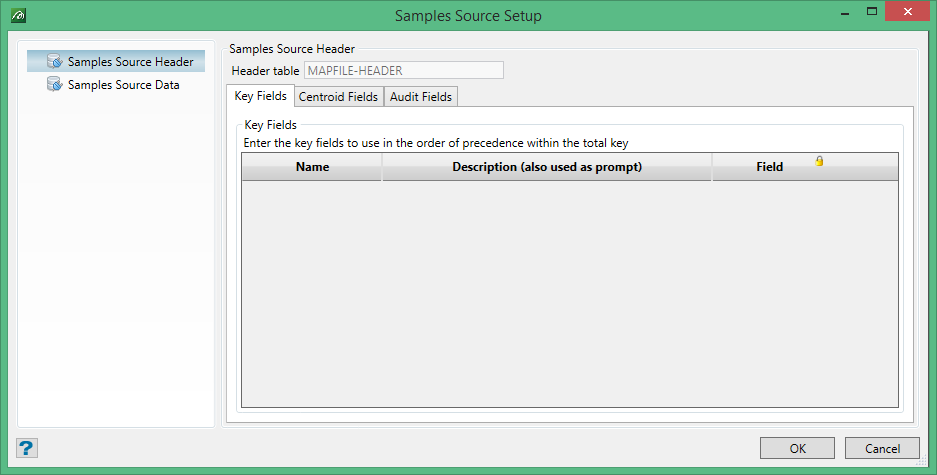
This is a simplified form of Grade-Control Database Setup, although in this case the data will only ever be read and not written to. There are two sections which need to be defined – header and data.
Key Fields
If the source is a samples database, the header table name will be automatically populated as will the Key Fields sub-tab. See the discussion for Blast Header for relevant details, as the behaviour is the same.
If the source is a map-file, the header table name is not required (and will not be present on the panel) as the header details are defined in the header section of the map-file. The Key Fields will again be automatically populated according to the map-file header details.
Centroid Fields
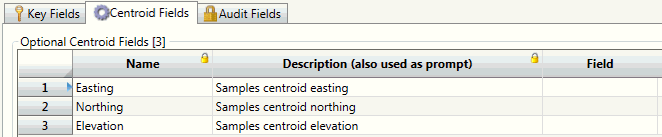
If defined in the samples database, the centroid can be used for spatial selection of samples. While optional, if any field is supplied, sufficient fields must be supplied for either 2D or 3D coordinates.
Audit Fields

If available on the samples database, these items can be used for data selection by date/time.
Samples Source Data
As with the Header tab, the table name will only be required for sample database.
Required Fields
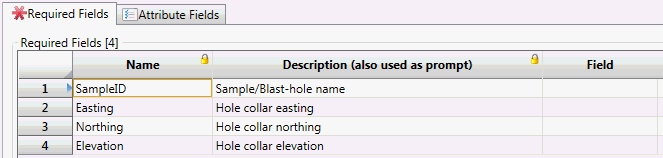
Required fields will be sample ID and the sample coordinate (typically a collar position). This is the same for both samples DB and mapfile. Note: coordinate will be required in full 3D.
Attribute Fields
The behaviour of this sub-tab is the same as previously described for attributes. See the discussion above for Blast-Hole attributes for more information.
