

Import MineSight Triangulations
Instructions
On the File menu, click Import, then click MineSight in the File Format column on the left side of the Import panel, and select Triangulations for File Type on the right.
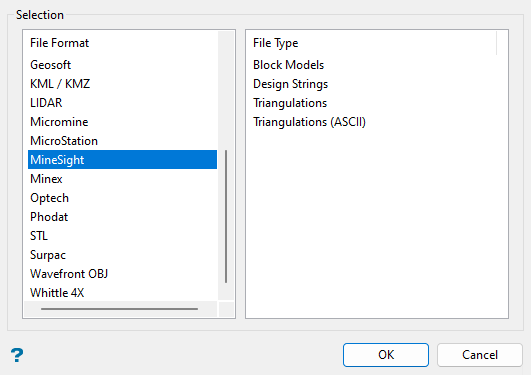
Click OK to open the panel used to import MineSight triangulations.
The panel consists of two tabbed sections:
Note: All import triangulations use the default triangulation folder set in preferences, unless you have defined an alternate path.
Selection tab
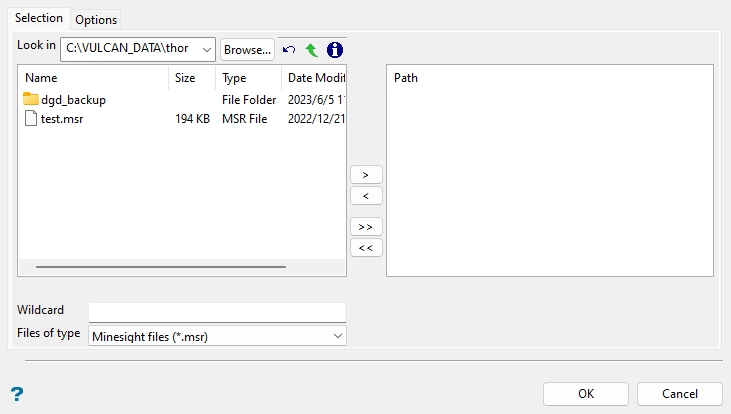
Select the MineSight files (.msr) that you want to import from the current working directory. Alternatively, click Browse... to select files from another location. Use the  icons to go to the last folder visited, go up one level, or change the way details are viewed in the window, respectively.
When using wildcard characters, type *> for multi-character and ?> for single character. To highlight multiple list items at once, use the left mouse option in combination with the Shiftkey (this is for items that are adjacent in the list; for non-adjacent items, use the Ctrlkey and the left mouse option).
Move the items to the selection list on the right side of the panel.
- Click the
 button to move the highlighted items to the selection list on the right.
 - Click the
 button to remove the highlighted items from the selection list on the right.
 - Click the
 button to move all items to the selection list on the right.
 - Click the
 button to remove all items from the selection list on the right.
Options tab
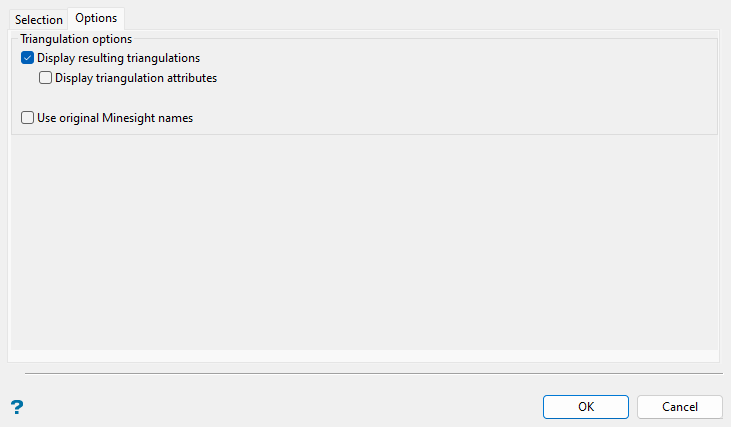
Set the desired triangulation import options in this section.
Select the Display resulting triangulations checkbox to show the imported triangulations on screen after clicking OK. Select the Display triangulation attributes checkbox to show the display attributes (solid shading, line colour, pattern, translucency, etc.) of each loaded triangulation in a new panel after clicking OK. See more information for the Model > Triangle Files > Properties option to modify the attributes in this panel.
Note: If you enable the Display triangulation attributes checkbox, a panel with display attributes will pop up for each triangulation, which may be time consuming if importing many triangulations. To modify display attributes for loaded triangulations after importing, you can use the Model > Triangle Files > Properties option, which is also accessible by right-clicking on the triangulation and selecting Properties... from the context menu, or by clicking the  Triangulation Properties button on the Status toolbar.
Select the Use original Minesight names checkbox to use maintain triangulation names from MineSight. If this option is not enabled, the imported triangulations will inherit the names of the selected MineSight files. For example, if your MineSight file is named surface.msr, then the resulting imported triangulation will be named surface.00t. If importing multiple triangulations from the (.msr) file or a triangulation with the same name already exists, then a number will be appended to the name of the newly imported file, for example surface_1.00t.
