

Target
Targeting
Use the Target option to report reserves for each targeted period. This option requires a grid, a sequenced series of mining polygons and target periods.
- Grid
The target grid may represent any modelled variable. While it is usually a thickness grid, it may also be a tonnage grid, a $'s grid or an hours grid, etc. - Mining Polygons
These polygons must be selected in the order of mining advance and have the mining direction applied to each polygon (use the Tools > Direction option to change the mining direction). - Periods
The target periods are set in the Define Periods option.
Targeting advances along the polygon sequence, summing the grid as:
density * recovery * (SUMinode valuei* dx * dy)
The summation (i.e. the reserve) has the units:
density * node value * coord.units2
This allows you to build a table of target units:
| Density | Grid Units | Co-ord Units | Target Value Units |
|---|---|---|---|
| 1.0 (no units) | feet (thickness) | feet | ft3 |
| tons/ft3 | feet | feet | tons |
| 0.037037 (yr3/ft3) | feet | feet | yr3 |
| 1.0 (no units) | hours/ft2 | feet | hours |
| 1.0 (no units) | $?s/ft2 | feet | $?s |
To produce an hours/ft2grid (to be able to target on hours), use the following equation:
(thickness*cell area)/27 creates a grid of yards per cell ((thickness*cell area)/27)/productivity creates a grid of hours per cell ((thickness*cell area)/27)/productivity/cell area creates a grid of hours per ft2
Reports are produced and the strip layout is subdivided at target boundaries. The resulting target polygons can be saved (complete with labels) to a design database.
Instructions
On the Rsvute menu, point to Reserves, and then click Target to display the Target panel.
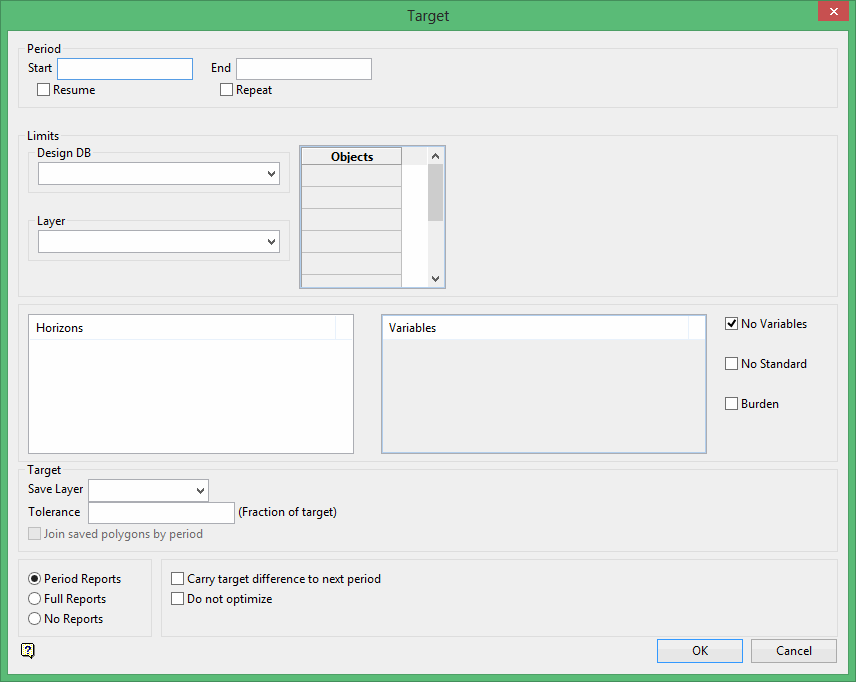
Period
Start
Enter the first target value. If left blank, then targeting starts at the first period.
End
Enter the last value targeted. If left blank, then the last defined period is the last one targeted.
Resume
Select this check box to resume targeting from the last period targeted. If all periods have been targeted, then the last target is repeated.
Repeat
Select this check box to repeat the target defined for the last period until all selected polygons have been targeted.
Limits
Design DB
Enter, or select from the drop-down list, the name of the design database containing the limit polygons.
Objects
Enter the name of the limit polygons. Wildcards are allowed. These limit polygons are used to apply an overall limit to the reserve area. It can be used to generate reserves for a given lease or property section.
Layer
Enter the name of the layer that contains additional limit polygons. Wildcards are allowed.
Horizons
This section contains a list of horizons. Select the horizons to be reported. Standard windows selection methods apply, that is Shift plus left mouse button to select adjacent horizons and Ctrl plus left mouse button to select non-adjacent horizons. You can also right-click in the section and select Select all.
Only the selected horizons are reported. Rsvute still acknowledges that the other horizons exist, and hence the burden values are not affected by this list. If no horizons are specified, then all known horizons are reported.
Variables
This section contains a list of variables. Select the variables to be reported, for example OB, MD, AS, SU etc. Standard windows selection methods apply, that is Shift plus left mouse button to select adjacent variables and Ctrl plus left mouse button to select non-adjacent variables. You can also right-click in the section and select Select all.
Each variable corresponds to a grid. If the grid for a particular horizon/variable combination does not exist, a set of "...." will appear on the report instead of a value. If no variables are specified, then all known variables are reported.
Note: If a variable does not appear in the list, then it has not been defined through Grid Calc.
No Variables
Select this check box if you don't want variables to be reported.
No Standard
Select this check box to report on user variables. Standard coal variables are not reported when this option is ticked.
Burden
Select this check box if you want Rsvute to derive the overburden and interburden values. Rsvute does this by comparing the surfaces that make up each horizon, checking for overlap and volumes between each pair. In addition to the volumes, stripping ratios are also reported.
Note: Because of the cell by cell checks and calculations required, ticking this check box will considerably slow the Rsvute execution time. If burden values are required on a report, it is much faster to calculate OB and MD (overburden and midburden) grids and report on these directly.
Target
Save Layer
Enter the name of the layer for the target polygons. If left blank, then the target polygons are not saved. Target polygons are always saved to the current design database.
Tolerance
Enter the tolerance value. Targets are never met precisely. This tolerance is a fraction representing allowable error in the target.
For example, a tolerance of 0.01 with a target of 1,000,000 corresponds to an error of 1,000,000 * 0.01, i.e. 10,000.
Join saved polygons by period
Select this check box to join together resultant polygons saved into each period. If this check box is not ticked then a series of polygons displays in each period.
Period Reports
Select this option to generate period reports at the end of each period.
Full Reports
Select this option to generate full reports at the completion of each polygon. These will occur at the end of each strip or block as well as at the end of the period.
No Reports
Select this option if no reports are required.
Carry target difference to next period
Select this check box to carry the targeting error to the next period.
For example, if after targeting a period there is an error of 10,000, then the target value for the next period would be increased by 10,000. The same applies if the error is -10,000, in which case the next target value would be decreased by 10,000.
Do not optimise
Select this check box to optimise the targeting process by assuming that the target grid is relatively uniform. While this assumption is generally true of coal seams, it may not be true of overburden. This option should be used if the targeting appears to be running slow or if it generates the error "maximum number of iterations exceeded".
Click OK.
The target process is then run. Resulting target polygons are shown in green.
